
Plan, deploy and operate a Sophos ZTNA Gateway
A Sophos ZTNA Gateway connects authorised users to internal applications. There are three supported deployment options: a local gateway VM on VMware ESXi or Microsoft Hyper-V, a Sophos Cloud Gateway VM on either hypervisor, or a Sophos Cloud Gateway on a centrally managed Sophos Firewall. This runbook takes you from choosing an option through acceptance testing to a safe way back. For the earlier decision between ZTNA and traditional remote access, see Sophos Connect or SSL VPN: Which remote access solution fits? and Zero Trust explained simply: ZTNA instead of a traditional VPN.
The current interface is called Sophos Fusion; older help text and some screenshots still say Sophos Central. Where a screenshot differs, follow the current paths and field names written out here.
Purpose and quick answer
Choose the gateway type by data path and operational responsibility, not by the number of clicks:
| Option | Supported platform | Data path and exposure | Key network requirement |
|---|---|---|---|
| Local gateway | ESXi or Hyper-V | Gateway and data plane run in the customer’s data centre; the gateway is reachable from the internet. | Open only inbound TCP 80 and 443 on the external interfaces, forward both ports by DNAT and block all other inbound ports. Do not put a reverse proxy in front of it. |
| Sophos Cloud Gateway as a VM | ESXi or Hyper-V | Sophos manages the cloud entry point; the VM connects Sophos Cloud to internal resources and is not published as a separate internet entry point. | Open only outbound TCP 443 on the external gateway interface; provide public CNAMEs and private DNS resolution. |
| Sophos Cloud Gateway on Sophos Firewall | Centrally managed hardware, cloud, virtual or software firewall running SFOS 19.5 MR3 or later | No separate gateway VM; authentication and authorisation take place in Sophos Cloud. | Sophos Fusion must manage the firewall; plan the region, identity provider, certificate and special redirect URL. |
A VM supports einarmig (one-arm) or zweiarmig (two-arm) deployment. A one-arm deployment uses the external interface for inbound and outbound traffic and minimises infrastructure changes. A two-arm deployment separates the external and internal interfaces, requires two network adapters and possibly static routes; according to the vendor, it provides the best security and throughput. The separate guide Publish a server with DNAT on Sophos Firewall explains the underlying firewall feature; the ZTNA-specific port requirements follow below.
Prerequisites, licences and roles
Licences and administrative roles
- The appropriate licence is required for ZTNA features. The gateway release notes explicitly identify features that depend on licensing.
- Sophos Fusion Firewall Management requires a paid subscription in addition to the base firewall licence.
- Registering a firewall with Sophos Fusion requires a Central Super Admin. Alternatively, that administrator can generate an OTP using the firewall serial number and pass it to the firewall administrator; the OTP is valid for 14 days.
- Assigned user groups must be synchronised in Sophos Fusion. Microsoft Entra ID or Active Directory are supported as directory services. Microsoft Entra ID, Okta and local Active Directory are documented as identity providers.
- Entra ID groups must be security-enabled. Groups created directly in Entra ID are enabled automatically; groups imported from AD or created through the Microsoft 365 portal may differ.
The gateway documentation reviewed does not specify a more granular ZTNA administrator role. If the account cannot see the menus or actions described, do not broaden permissions by trial and error. Ask an authorised Sophos Fusion administrator to check the tenant-specific role assignment.
Certificate
The gateway requires a wildcard certificate. Certificates from Let’s Encrypt or a trusted certificate authority are supported:
- RSA with at least 2048 bits;
- ECDSA, but not with P-384 or P-521.
A VM deployment supports a single wildcard certificate. Have the certificate and private key ready. You can upload them under Zertifikat in the gateway details; alternatively, Sophos Fusion can generate a Let’s Encrypt certificate there.
For practical certificate procurement, see Create a Let’s Encrypt wildcard certificate. For certificates managed directly on Sophos Firewall, Manage Let’s Encrypt certificates on Sophos Firewall is the separate operational procedure.
Host, time and capacity
| Host | Minimum version | Minimum resources |
|---|---|---|
| VMware vSphere Hypervisor (ESXi) | 6.5 or later | 2 CPU cores, 4 GB RAM, 80 GB storage |
| Microsoft Hyper-V | Windows Server 2016 or later | 2 virtual processors, 4096 MB startup memory, 80 GB storage |
SSDs are recommended for more consistent disk I/O performance. The host date and time must be correct, and its time zone must be UTC. The gateway inherits the host time and cannot work correctly if it is wrong.
Networking, IPv4 and permitted destinations
- Do not use
10.42.0.0/16,10.43.0.0/16or10.108.0.0/16for the gateway. These networks are reserved for internal services. - IPv6 is not supported for gateways. Do not assign IPv6 addresses by DHCP to the gateway or endpoints in this scenario. IPv6 must be disabled manually on endpoints that are already configured.
- Use a static IPv4 address or a DHCP reservation. A gateway cannot handle a subsequent change to its IP address.
- If users access ZTNA resources from the same network as the gateway, a MASQ SNAT rule prevents asymmetric routing.
- With multiple gateway nodes, all nodes must be in the same subnet and have very low latency between them.
A local gateway behind a firewall must be able to reach the following destinations, normally over TCP 443:
sophos.jfrog.iojfrog-prod-use1-shared-virginia-main.s3.amazonaws.com*.amazonaws.comproduction.cloudflare.docker.com*.docker.io*.sophos.comlogin.microsoftonline.comgraph.microsoft.comsentry.io*.okta.com, if Okta is the identity providerwsserver-<Gateway-FQDN>- the gateway FQDN configured in the gateway settings
In addition, ztna.apu.sophos.com requires TCP 22. If an upstream firewall decrypts TLS, exempt wsserver-<Gateway-FQDN> from decryption.
ZTNA controls web-based and native applications. Native applications require the ZTNA agent. Applications with dynamic port allocation or very large numbers of ports, such as older VoIP products, are not supported. The agent is documented for Windows 10 1803 or later and macOS Big Sur 11 or later.
Configuration with adaptable example values
Use your own values. The following names only illustrate the mapping:
| Purpose | Example value |
|---|---|
| Gateway name | ztna-zrh-01 |
| Gateway FQDN | ztna.example.com |
| Resource domain | apps.example.com |
| Internal DNS server | 192.0.2.53 |
| Example internal application | app.example.com |
| Gateway IP or cluster VIP | 192.0.2.20 |
Current UI paths
The current German-language help gives these paths and actions:
- Meine Produkte > ZTNA > Gateways, then Gateway hinzufügen
- Meine Produkte > ZTNA > Einstellungen > Domänen
- Geräte > Installer
1. Deploy the VM image
For ESXi:
- Open Geräte > Installer, find Zero Trust Network Access and download the gateway image.
- Accept the licence agreement and any export compliance forms.
- Deploy the OVA in vSphere using OVF-Vorlage bereitstellen.
- Disable automatic power-on. The VM must not start without the ISO generated later.
For Hyper-V:
- Open Geräte > Installer > Zero Trust Network Access and download the Gateway-VM-Image für Hyper-V.
- Extract the VHDX. Use each VHDX for only one VM; make copies for additional VMs.
- Create a Generation 1 VM with at least 4096 MB startup memory and two virtual processors. Attach the existing VHDX.
- Add a second network adapter for a two-arm deployment. Assign the appropriate VLAN IDs where VLANs are used.

2A. Create a local gateway
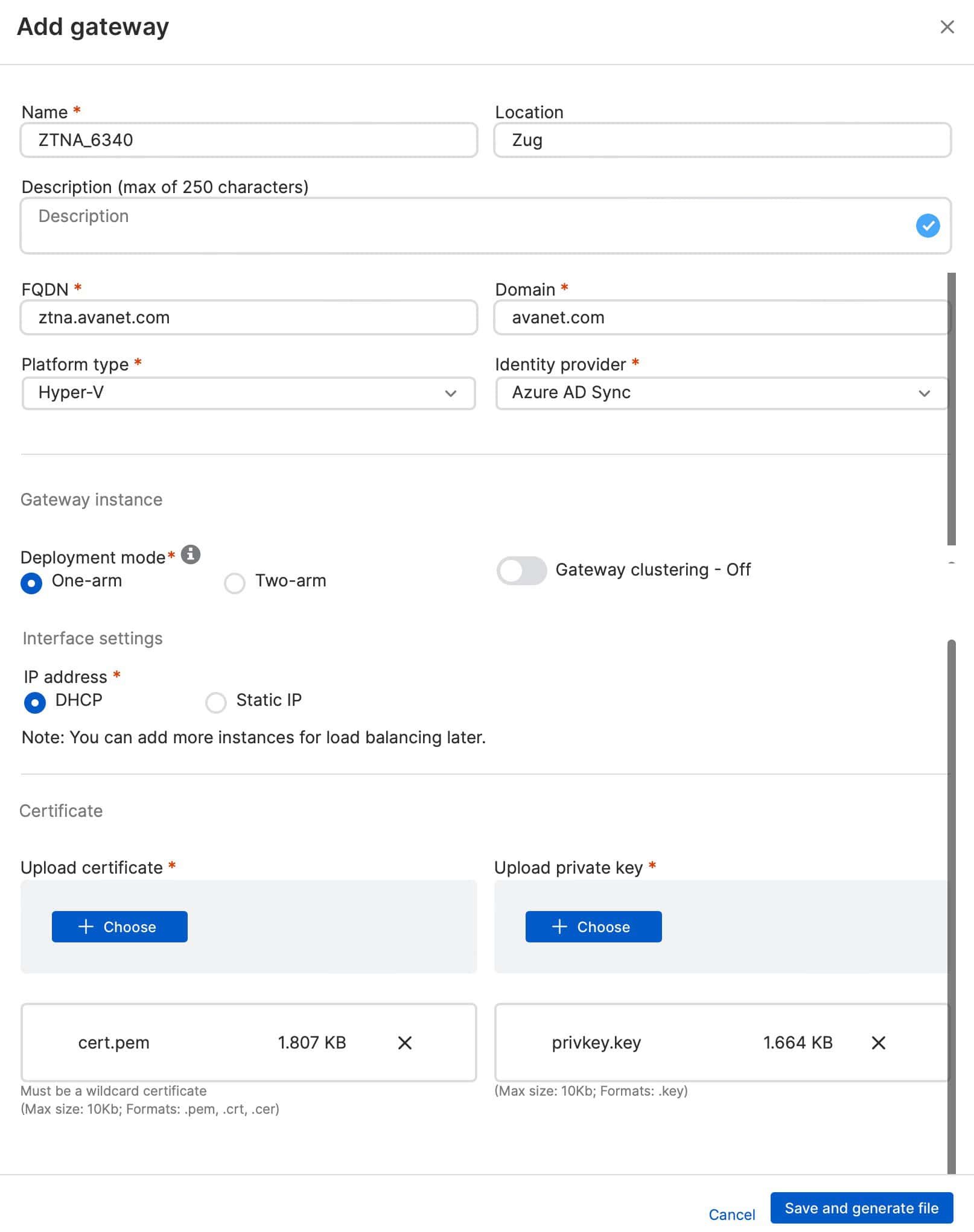
- Open Meine Produkte > ZTNA > Gateways > Gateway hinzufügen.
- Set Gateway-Modus to Lokal.
- Enter the Gateway-Name, Gateway-FQDN and Domäne für Ressourcen.
- Set Plattformtyp to VMware ESXi or Hyper-V to match the host.
- Set Bereitstellungsmodus to Einarmig or Zweiarmig.
- Enter the interfaces. With DHCP, a reservation is mandatory. With Statische IP, enter the IP address, subnet and DNS server. If a two-arm deployment reaches applications on multiple internal networks, enter Statische Routen.
- Upload the wildcard certificate.
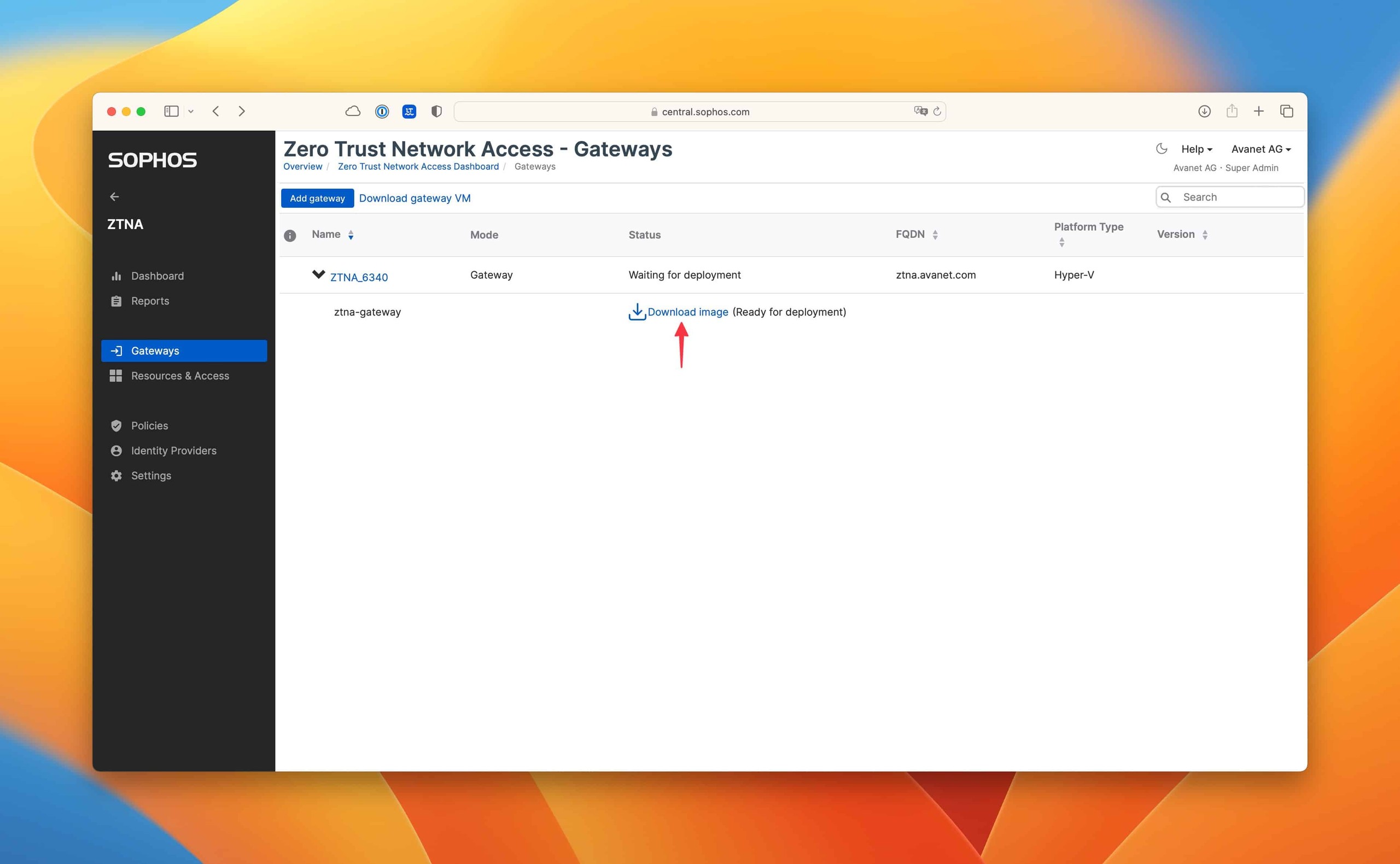
- Click Speichern und Datei erstellen. The initial status is Warten auf Bereitstellung; the instance-specific boot ISO is generated.
- On the firewall, open only inbound TCP 80 and 443, configure DNAT for both ports to the external gateway IP or cluster VIP, and block all other inbound ports. Do not use a reverse proxy.
2B. Create a Sophos Cloud Gateway as a VM
- First validate the domain under Meine Produkte > ZTNA > Einstellungen > Domänen > Domäne hinzufügen.
- Sophos Fusion generates a CNAME, for example
5ccdee2b04764c75ac252a0f91f161b7.cert.prod.ztna.access.sophos.com. Publish the exact value generated for your tenant with your DNS provider. - Wait for DNS propagation. Under Einstellungen > Domänen, click Validieren. Continue only when the status is validiert.
- Click Gateway hinzufügen, set Gateway-Modus to Sophos Cloud, and enter the Gateway-Name and Gateway-FQDN. The gateway FQDN must match the value specified when registering the ZTNA application.
- Select the validated Domäne, the appropriate Plattformtyp, the Identitätsanbieter and, under Points of Presence, the region closest to the data centre.
- Choose Einarmig or Zweiarmig, configure reserved or static interfaces and any necessary static routes. Upload the wildcard certificate.
- Click Speichern und Datei erstellen. Copy the alias domain generated in the Gateway hinzugefügt dialogue and publish it in public DNS as a CNAME for the gateway FQDN.
- Open only outbound TCP 443 on the external interface. This model does not require inbound DNAT publication of the VM.
Since ZTNA 2.1, a secondary point of presence adjacent to the primary PoP is configured by default. It can be disabled under Einstellungen. Even so, choose a primary PoP close to the data centre.
2C. Create a Sophos Cloud Gateway on Sophos Firewall
- Confirm SFOS 19.5 MR3 or later and central management in Sophos Fusion. If the firewall is not yet registered, use Register on the firewall with Super Admin credentials or the OTP generated by the Super Admin.
- Validate the domain as in 2B.
- Open Meine Produkte > ZTNA > Gateways > Gateway hinzufügen and select Gateway-Modus: Sophos Cloud.
- Enter the Gateway-Name and Gateway-FQDN, select the validated Domäne and set Plattformtyp to Firewall.
- Under Firewall, select the SFOS device. The list shows only centrally managed firewalls running 19.5 MR3 or later. The active firewall in an HA pair can be selected, allowing traffic and services to fail over.
- Select the Identitätsanbieter and Points of Presence, upload the certificate and click Speichern. The gateway should become active after approximately five minutes.
- Add the distinct redirect URL
https://<externer-Gateway-FQDN>/ztna-oauth2/callbackto the identity provider.
Limitations of this option:
- In an active-active HA deployment, the firewall’s web admin portal is not accessible through ZTNA.
- The firewall’s user portal and VPN portal are not supported through the ZTNA gateway.
- Otherwise, the web admin portal can be added as a resource of type Webadmin-Portal. For agentless access, publish the generated alias domain as a public CNAME; for agent-based access, the agent intercepts the external FQDN.
3. Optionally create a VM cluster
Create the cluster before downloading the boot ISOs:
- Open the new gateway and click Instanzen hinzufügen/bearbeiten > Eine weitere Instanz hinzufügen. Clustering is enabled automatically.
- Enter an unused virtual cluster IP in the same IP range as the instances. For a two-arm deployment with an external load balancer, leave the external cluster VIP blank.
- Enter the VM name and interface IP; for a two-arm deployment, enter the internal and external IPs.
- Repeat for at least three instances. Three to nine instances are supported, always an odd number.
- Point a local gateway’s DNAT at the external cluster VIP. At least half of the nodes must remain active.
4. Attach the boot ISO and approve registration
Each ISO is uniquely assigned to a gateway or instance and must not be reused.
- ESXi: Mount the ISO in the CD/DVD drive and select Verbinden and Beim Einschalten verbinden. An existing serial device can be removed.
- Hyper-V: In the VM settings, select IDE Controller 1 > Image-Datei for the DVD drive and attach the ISO.
- Only then start the VM. The ISO must remain attached even after a successful start.
- Open the gateway details. The status changes from Warten auf Bereitstellung to Warte auf Genehmigung or Warten auf Gateway-Genehmigung.
- Click Genehmigen. For a cluster, approve only the first instance; subsequent instances are then managed.
- Approval can take up to ten minutes. Check the platform-specific final status: local on ESXi Verbunden, local on Hyper-V Aktiv, Sophos Cloud on ESXi Aktiv and Verbunden, and Sophos Cloud on Hyper-V Aktiv.


Check DNS and the data path correctly
Public and private DNS servers serve different purposes:
Local gateway
- With an agent: The agent intercepts the request for the private application and assigns it an address from
100.64.x.x. To establish the tunnel, it resolves the gateway FQDN through a public A record to the gateway IP. The gateway then resolves the application FQDN through the private DNS server. - Agentless: A public CNAME for the application points to the gateway FQDN; its public A record points to the gateway IP. The gateway queries the private DNS server for the internal application destination.
Sophos Cloud Gateway
- With an agent: Public DNS resolves the private application to its assigned alias domain. This leads through the Sophos Cloud PoP to the gateway. The gateway then resolves the internal destination through private DNS.
- Agentless: The resource’s public CNAME points to the alias domain generated by Sophos. For each new agentless resource, the gateway initiates a new tunnel to the PoP over TCP 443. The PoP uses the alias to route the request to the gateway.
The connection from the agent to the gateway or PoP uses mutual TLS. TLS 1.2 and later and encryption protocols with key lengths of up to 256 bits are documented.
The ZTNA agent changes the default TAP adapter. As a result, nslookup may appear to fail for names outside ZTNA. Specify the DNS server actually responsible:
nslookup <FQDN> <DNS-Server>
Validation and expected results
Do not sign off based on a green gateway status alone. Use a limited test user and exactly one test resource.
- Management: Under Meine Produkte > ZTNA > Gateways, the gateway is Aktiv or Verbunden. Under Gateway-Details, the software version and, for clusters, all nodes are correct.
- Public DNS: For a local gateway, the gateway A record and any resource CNAME return the planned public IP. For a Cloud Gateway, the domain-validation, gateway and resource CNAMEs exactly match the values generated by Sophos.
- Private DNS: The gateway can resolve the internal resource FQDN to the internal server IP.
- Certificate: The FQDN, wildcard scope, chain, validity period and private key match. The browser or agent shows no trust warning.
- Network: For a local gateway, TCP 80 and 443 reach the intended DNAT rules; other inbound ports are blocked. For a Cloud Gateway, the outbound TCP 443 tunnel works without inbound publication.
- Access: The authorised pilot user can reach only the assigned application. An unauthorised test user cannot gain access.
- Application: Test not only sign-in but also a real, limited transaction. The return path works and the application sees the expected source of the connection.
- Stability: Test externally and, if applicable, from the same network as the gateway. The second test particularly verifies MASQ and the return path.
- Cluster: Do not stop a node outside an approved maintenance and failover test. During a planned test, at least half the instances remain active and requests are forwarded through the remaining nodes.
If the expected result is missing, go to the relevant symptom below. Do not change DNS, certificates, NAT and policy at the same time.
For separate analysis of the firewall layer, see Test a firewall rule with Log Viewer, Policy Test and Packet Capture and Understand NAT on Sophos Firewall.
Troubleshooting by symptom
Gateway stays at “Warten auf Bereitstellung” or cannot reach Sophos Fusion
- Check that the unique ISO is attached to exactly the right VM and Beim Einschalten verbinden is enabled.
- Check the host time and UTC time zone.
- Check the static IP or DHCP reservation, DNS and permitted destinations;
ztna.apu.sophos.comrequires TCP 22. - Check for a TLS decryption exception for
wsserver-<Gateway-FQDN>. - Run VM diagnostics in vSphere or Hyper-V Manager.
Status waits for approval
Open the gateway details and click Genehmigen. Allow up to ten minutes. For a cluster, approve only the first instance. If the status does not change, check connectivity and time first rather than creating more instances.
Gateway fails after a DHCP or network change
The gateway cannot handle a change to its IP address. Restore the original address assignment and set a DHCP reservation or static address. Then check DNS, DNAT and, for clusters, the VIP destinations. Planned IP changes are not a simple runtime change and must be treated as a new deployment.
Sign-in works, but the resource does not
- Resolve the resource FQDN against the private DNS server specifically.
- Check the route and firewall allowance from the gateway to the documented destination port.
- For a two-arm deployment, check static routes to other internal networks.
- For access from the gateway’s own network, check the MASQ rule and asymmetric routing.
- Check whether the application uses dynamic or very many ports; such applications are not supported.
External access to a local gateway fails
Check the public A record, TCP 80 and 443, both DNAT rules and their destination IP or cluster VIP. Make sure there is no upstream reverse proxy. Other inbound ports must remain blocked.
Cloud Gateway or agentless resource cannot be reached
Check in this order:
- Domain status validiert;
- gateway CNAME and resource CNAME against the alias domains generated in Sophos Fusion;
- outbound TCP 443 from the gateway to the PoP;
- private DNS resolution from the gateway to the application;
- the correct PoP region and, for firewall gateways, the special OAuth2 redirect URL.
nslookup returns incorrect results after agent installation
The agent makes the ZTNA TAP adapter the default. Repeat the query with an explicit DNS server. A failure through the TAP adapter does not prove that the normal DNS server does not know the name.
Certificate errors
Check the wildcard scope, complete chain, private key and algorithm. P-384/P-521 with ECDSA and RSA below 2048 bits are not supported. Compare the gateway FQDN, resource domain and certificate names before uploading a new certificate.
Diagnostic bundle for Sophos Support
For VM gateways on ESXi or Hyper-V:
- Open Gateway-Details > Fehlerbehebungsprotokolle.
- Click Protokolle generieren. Generation may take a few minutes.
- Download the new entry in the Fehlerbehebungsprotokoll column. It expires after one hour.
- If necessary, enable time-limited support access in the gateway details and send the displayed token only to Sophos Support.
This logging feature does not apply to the gateway integrated into Sophos Firewall.
Safe rollback or offboarding
Distinguish between a configuration change, a VM gateway update, a firewall firmware change and permanent deletion. They do not have the same rollback procedures.
Before any change
- Record the gateway mode, FQDN, IPs, cluster VIP, platform, version, certificate, public CNAME/A records, DNAT/SNAT, static routes, assigned resources and pilot group.
- Check which resources and users depend on the gateway and agree a maintenance window.
- Change only one layer at a time in the pilot. Record the last known working DNS and firewall values.
Move resources to a firewall gateway
For the documented migration from an existing gateway to a firewall gateway:
- Set up the firewall gateway completely.
- Add its new OAuth2 redirect URL to the identity provider.
- Open Ressourcen und Zugriff, select the resource and set Gateway to the firewall gateway.
- For agentless access, publish the firewall’s new alias domain as a public CNAME.
- Validate with a limited user. Remove the old DNS value or old gateway only after a successful application test.
Delete a gateway
Gateway löschen is available in the gateway details. However, the associated sources describe neither recovery of a deleted gateway nor a transaction-safe automatic rollback of DNS, NAT, resources and certificates. Therefore:
- Do not delete as the first rollback step.
- First move or disable dependent resources during the agreed change window and confirm that no production access still uses the gateway.
- Then remove obsolete public DNS and firewall rules using the list recorded beforehand.
- Delete the gateway only after approval from the application and network owners.
- If dependencies or the recovery path are unclear, stop before Gateway löschen and escalate to Sophos Support.
Rollback after updates
The instructions reviewed do not describe a downgrade for VM gateway updates. If an update fails, do not attempt an undocumented image rollback; generate logs, maintain access through the unchanged instance or cluster, and escalate to Sophos Support.
For a gateway integrated into Sophos Firewall, the documented firmware rollback procedure applies:
- Check for a valid support subscription and back up the firewall configuration.
- Before changing versions, check whether the target version supports the configured number of gateways; excess gateways must be deleted before changing firmware.
- Schedule the change outside peak hours. The firewall terminates sessions and restarts.
- Under Backup and firmware > Firmware, you can upload a compatible version and start it with Upload and boot, or boot an existing inactive image with Boot firmware image.
- The active and previous firmware, each with its respective configuration, reside on separate partitions. Rolling back to the previous firmware therefore also restores its previous configuration.
- Log in after the restart and check the active firmware at the top left of the Control Center, then check gateway status, DNS and pilot access.
Operations, review and lifecycle
Update a VM gateway
Under Gateways, a green tick next to the version number indicates an available VM version. Click the version number, select the target version and schedule the update or select Jetzt. If a restart is required, the interface displays a warning; schedule it during a maintenance window. This feature applies only to ESXi and Hyper-V gateways. A firewall gateway is updated through SFOS firmware.
The release notes reviewed list ZTNA 2.2 dated 13 January 2026 for ESXi and Hyper-V in both local and Sophos Cloud deployments and describe the upgrade as mandatory because of newly required capabilities. Even so, always check the target version offered in Sophos Fusion and the current release notes before the maintenance window; do not infer an EOL date or today’s target version from this historical version reference.
The release history also mentions a configurable inactivity timeout for agent-to-gateway tunnels and the disabling of Resource Connection Pooling from 2.1.2. For 2.2, it documents fixes for intermittent connections to agent-based resources through a local gateway, a status stuck at Updating after image updates, misleading diagnostic messages about cluster pods and a race condition involving Kubernetes pods. Use this history when assessing changes and faults, not as a substitute for the current gateway details view.
Regular review
Check at least as part of your own maintenance cycle:
- gateway and node status, and installed and available versions;
- certificate validity and the complete chain;
- public domain-validation, gateway and resource CNAMEs;
- private DNS resolution and only those routes, DNAT, SNAT and firewall rules still needed;
- PoP region, secondary PoP and actual latency for a Cloud Gateway;
- synchronised, security-enabled user groups and the identity provider;
- gateway-to-resource assignments and gateways no longer required;
- diagnostic and support procedures, maintenance windows and responsible people.
Do not publish claims about a transition period, migration deadline, retirement or EOL without a current, accessible product notice. The available sources support operational guidance and release status, but not such lifecycle dates.
Related existing guides
This runbook deliberately ends at the gateway boundary. Complete setup of the directory service and identity provider, installation or removal of the ZTNA agent, agent-specific troubleshooting, resource access rules and special designs with multiple domain controllers belong in their respective existing guides. The linked introductions to Zero Trust, remote access, certificates, DNAT and firewall diagnostics complement the gateway procedure without duplicating those separate procedures.