
Manage Sophos Firewall CAPTCHA for WebAdmin and User Portal
Since SFOS 18.0 MR3, the Sophos Firewall can display a CAPTCHA for the WebAdmin login and for the User Portal. This protection was introduced following a security vulnerability and is intended to make automated login attempts more difficult.
You can deactivate or reactivate CAPTCHA via Device Console. But this should only happen consciously. WebAdmin, User Portal, VPN Portal and SSH are part of the firewall’s direct attack surface. If these services are accessible from insecure networks, CAPTCHA should not be the only protective measure and should not be removed carelessly.
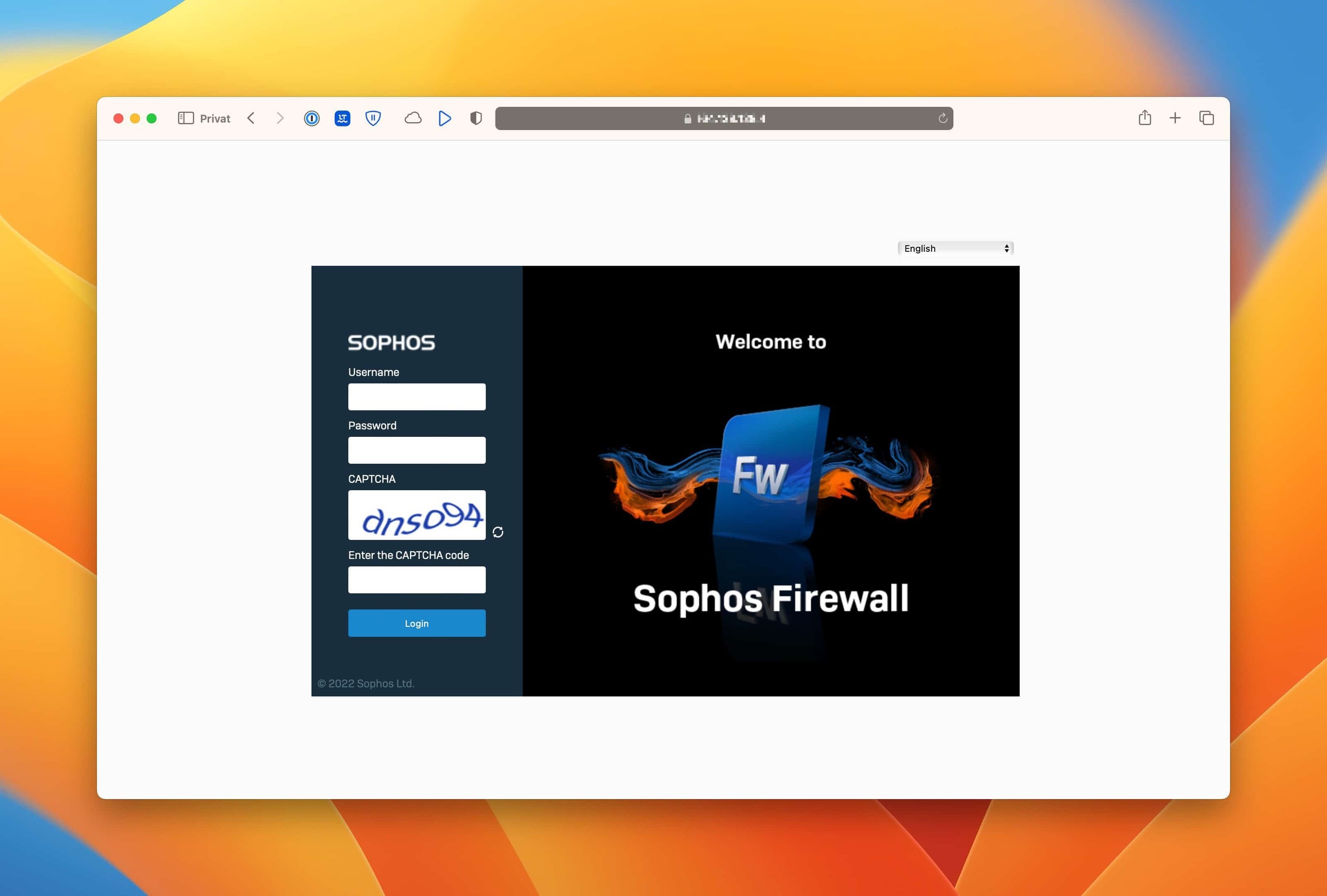
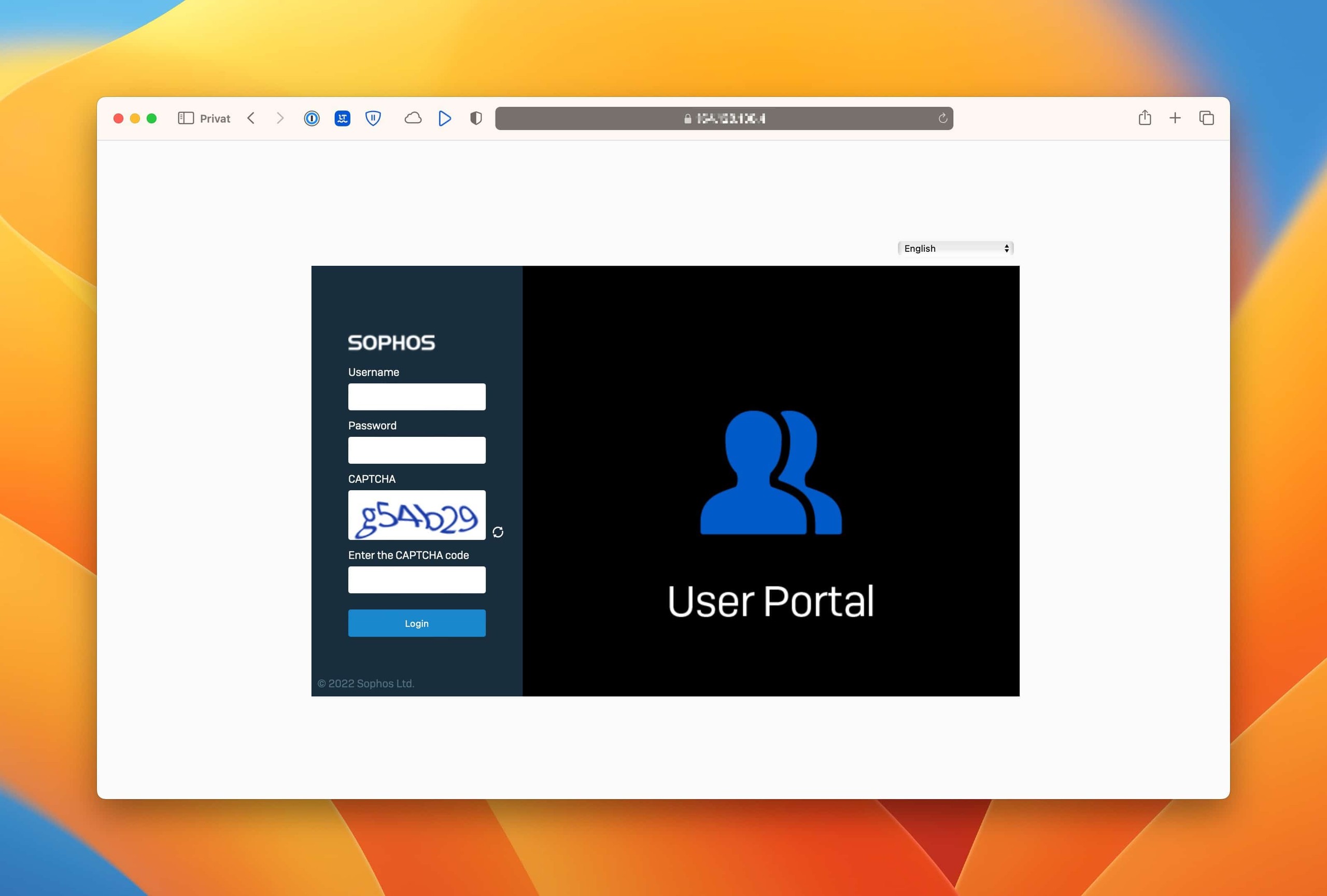
Classification
CAPTCHA is not a replacement for a clean administration design in SFOS. It is an additional hurdle before certain login pages. What remains crucial is whether these login pages have to be accessible from WAN, VPN, guest networks or broad internal networks.
Which login pages are affected
The device console commands in this article control CAPTCHA for two specific login pages:
- WebAdmin Console:
webadminconsole. WebAdmin local interface admin login. - User Portal:
userportal. User portal for VPN configurations, OTP and user functions.
Sophos describes CAPTCHA for administrators on WebAdmin and for local or guest users on User Portal when accessing via WAN or VPN interfaces. This is not the same as fully securing all remote access services. VPN Portal, SSL VPN, IPsec, SSH, DNS, SNMP and other local firewall services must also be controlled via Administration > Device access, Local Service ACL, MFA, logging and a clean remote access concept.
The ports also help with classification: WebAdmin uses 4444 by default, User Portal uses 4443, and VPN Portal uses 443. Since SFOS 20.0, VPN Portal is a separate service. During upgrades, the previous User Portal port can therefore move to VPN Portal, while User Portal is moved to 4443 or, if unavailable, to 65040. Before testing CAPTCHA, always check which login page and port are actually being opened.
The documented default for both global and VPN-specific commands is enabled. If a login from a LAN interface does not show CAPTCHA, this is not automatically a misconfiguration: Sophos does not require CAPTCHA for LAN sign-ins. Local users in this context are Sophos Firewall users, not users from an external authentication server such as Active Directory.
According to Sophos, CAPTCHA isn’t available on XG 85 and XG 85w. If such an appliance doesn’t show CAPTCHA, this isn’t a normal deactivation case but a platform limitation.
Important: Failed CAPTCHA attempts are not the same as failed logins. If a CAPTCHA fails before you actually log in, you should therefore evaluate login locks, authentication logs and portal access separately.
For the basic logic of local firewall services, Device Access and Local Service ACL on Sophos Firewall is the most important connection article. If it is not clear whether access is controlled via normal firewall rules or via Device Access, Sophos Firewall rule does not apply: check causes will help.
What this article does not cover
The article only covers the global CAPTCHA setting for WebAdmin Console and User Portal. This does not replace remote access hardening and is not a guide to securing SSL VPN, IPsec, Sophos Connect or Microsoft Entra ID SSO.
When it comes to remote access, other questions are more important:
- Set up and test SSL VPN: Sophos Firewall SSL VPN Setup Remote Access.
- Prepare Sophos Connect: Configure Sophos Connect on Sophos Firewall.
- MFA for Admins and Remote Access: Enable MFA for Sophos Firewall WebAdmin, VPN Portal and Remote Access.
- Limit portal and service access: Configure Device Access correctly.
SPX Portal and other portal or mail functions should also not be derived from these commands. With the SPX Portal, CAPTCHA remains active and cannot be switched off using these device console commands.
When not to disable CAPTCHA
CAPTCHA should remain active if any of these apply:
- WebAdmin can be reached from
WANor from wide internal networks. - User Portal is accessible from the Internet.
- VPN Portal or SSL VPN are publicly accessible.
- MFA is not consistently enabled for admins and remote access users.
- There are many failed login attempts in the log.
- There is no dedicated management network.
- Access to WebAdmin or SSH is not restricted via Device Access.
CAPTCHA does not prevent targeted attacks and does not replace MFA. However, it reduces automated login attempts and background noise. If you remove it, other controls should click cleanly.
Decision and preparation
Leave active or deactivate temporarily?
In practice, there are few good reasons to turn off CAPTCHA. This decision should be treated like a small security change.
- WebAdmin or User Portal is accessible from the Internet: Leave CAPTCHA active and check availability, MFA and logs first.
- Only management network or admin VPN is allowed to access: Temporary deactivation may be justifiable if documented.
- Accessibility issue with individual admins or users: Limit source, leave MFA active and document exception.
- Automated test in a laboratory environment: only in isolation, not for productive portals.
- Support case with time-limited change: Save the status beforehand, reactivate it afterwards or document a deliberate exception.
If the justification is just “more convenient”, CAPTCHA should not be disabled. It is better to design access to WebAdmin or User Portal in such a way that authorized users have fewer hurdles, without exposing the login page unnecessarily broadly.
Better alternative: reduce accessibility
Often the actual problem is not CAPTCHA, but rather a login page that is too widely accessible. If a portal is only used occasionally, it is usually cleaner to reduce accessibility rather than remove additional login protection.
Typical decisions:
- Admins should reach WebAdmin without public login noise: Only allow WebAdmin from management network, admin VPN or fixed admin IP.
- Users only need the User Portal for the first VPN download: Make the portal accessible for a limited time or only from internal/VPN networks.
- External support needs short-term access: Use temporary Local Service ACL exception rule with review date.
- CAPTCHA disrupts automated lab testing: only deactivate in an isolated test environment, not transferred to productive portals.
This order is important: First reduce the attack surface, then decide on CAPTCHA. If WebAdmin, User Portal or VPN Portal remain widely available, the deactivation should be very well justified and additionally secured with MFA, logging and regular reviews.
Check before disabling
Before making any changes, these points should be checked:
- Device Access: Is WebAdmin or User Portal only accessible from trusted sources?
- MFA: Is MFA active for WebAdmin, VPN Portal and Remote Access?
- Logging: Are failed logins and portal access checked?
- SSH access: Is SSH only allowed temporarily or from a management network?
- Fallback: Is it clear how to re-enable CAPTCHA if necessary?
- Reason: Is there really a technical reason, such as accessibility, automation in an isolated lab, or a temporary support scenario?
For access restriction, Configure Device Access correctly is the central article. For admin and portal logins, MFA for Sophos Firewall WebAdmin, VPN Portal and activate remote access should also be checked.
⚠️ Attention: CAPTCHA should not be disabled to make publicly accessible portals more convenient. First reduce accessibility, activate MFA and check logs.
Change in Device Console
Open SSH and Device Console
The CAPTCHA setting is changed via the Device Console. For this you need SSH access to the firewall.
- Allow SSH access under Administration > Device access only for a trusted source.
- Connect to user
adminvia SSH. - Open Device Console in the console overview.
The instructions Connect Sophos Firewall via SSH describe secure SSH access with macOS, Linux and Windows.
After the change, SSH should be restricted again to the necessary minimum. The following system captcha-authentication-global commands belong in the Device Console, not in the Advanced Shell. If log files are checked with tail, grep or less instead, the Advanced Shell is correct. The distinction is explained in Sophos Firewall Troubleshooting: Services and Logs.
View CAPTCHA status
Before making any changes, the current status should first be checked.
For global setting of WebAdmin:
system captcha-authentication-global show for webadminconsole
For global setting of User Portal:
system captcha-authentication-global show for userportal
The command shows whether CAPTCHA is active for the respective login page. The result should be documented with the date, firewall, admin and reason so that the change can be traced later.
If no deliberate exception is documented, the expected normal state should be enabled.
Change globally or just VPN-specific?
The global commands apply to WebAdmin Console and User Portal via WAN or VPN interfaces. If you deactivate it, you will also override the VPN-specific CAPTCHA setting.
The secure starting point is therefore: keep the global setting enabled, check the status with show, and only change the VPN-specific setting for a clear VPN-specific case.
If the problem only affects users or administrators who access via VPN, you should first check whether a VPN-specific change is sufficient:
system captcha-authentication-vpn show for webadminconsole
system captcha-authentication-vpn show for userportal
A VPN specific disablement is narrower than a global disablement. Nevertheless, the following also applies here: document the reason, test the real login and consciously decide again after the support case whether CAPTCHA should remain active.
Special Case: IPsec Tunnel with Remote Subnet Any
For site-to-site IPsec connections, CAPTCHA can apply unexpectedly if a tunnel is configured with Remote Subnet Any. In that case, the firewall may treat access through this connection more broadly than intended. This is especially relevant when administrators or local users access WebAdmin or User Portal through a site-to-site tunnel.
Before changing CAPTCHA in such environments, check:
- Are there policy-based IPsec connections with Remote Subnet
Any? - Is WebAdmin or User Portal accessed through a site-to-site tunnel?
- Is this tunnel really the right management path, or is it only historically grown?
- Would a targeted IPsec route for individual remote hosts or remote networks be sufficient?
- Would a dedicated management network or admin VPN be cleaner?
If only specific remote hosts or networks are affected, a targeted IPsec route is often cleaner than disabling CAPTCHA globally. The process is described in Create IPsec route on Sophos Firewall. Still, a routing correction does not replace a review of Device Access, MFA and Log Viewer.
Disable CAPTCHA for WebAdmin
If CAPTCHA should be deliberately deactivated for the WebAdmin login:
system captcha-authentication-global disable for webadminconsole
If only VPN accesses are affected, consider this narrower command instead:
system captcha-authentication-vpn disable for webadminconsole
You should then immediately check:
- Test WebAdmin login from the management network.
- WebAdmin Test login from unauthorized networks.
- Check Log Viewer for failed logins.
- Check MFA for administrators.
WebAdmin should not be accessible from any source. If external access is necessary, VPN, Sophos Central Firewall Management, a fixed admin IP or a Local Service ACL exception rule are the better basis.
Disable CAPTCHA for User Portal
If CAPTCHA should be deliberately deactivated for the User Portal:
system captcha-authentication-global disable for userportal
If only VPN users are affected, consider this narrower command instead:
system captcha-authentication-vpn disable for userportal
The User Portal should only be accessible when it is really needed, for example for VPN configurations, OTP tokens or user functions. In many environments, the portal is required once for setup and then remains open unnecessarily.
Check after change:
- Test User Portal login with a normal user.
- Check MFA or OTP process if used.
- Check accessibility from
WAN, VPN, LAN and guest networks. - Check failed logins in Log Viewer.
If the User Portal must remain publicly accessible, MFA, strong passwords, logging, restricted sources and, if necessary, Sophos Firewall Threat Feeds should be checked.
Re-enable CAPTCHA
For WebAdmin:
system captcha-authentication-global enable for webadminconsole
For User Portal:
system captcha-authentication-global enable for userportal
For VPN specific setting:
system captcha-authentication-vpn enable for webadminconsole
system captcha-authentication-vpn enable for userportal
After activation you should display the status again:
system captcha-authentication-global show for webadminconsole
system captcha-authentication-global show for userportal
system captcha-authentication-vpn show for webadminconsole
system captcha-authentication-vpn show for userportal
If CAPTCHA was deactivated due to a support case, it should be reactivated after the case is closed or the deactivation should be deliberately documented.
Follow-up inspection and operation
Follow-up inspection after the change
After a CAPTCHA change, you should not just run the show command. What is crucial is whether the affected login page can still only be accessed from the intended networks and whether login events remain traceable.
Useful follow-up check:
- Check status for WebAdmin and User Portal with
show. - Open Administration > Device access and check permitted zones for WebAdmin, User Portal, SSH, VPN Portal and SSL VPN.
- Test WebAdmin or User Portal from a permitted network.
- Test access from an unauthorized network if this is possible without risk.
- Check failed and successful login events in Log Viewer.
- Control MFA separately for admins and remote access users.
- Remove or tightly restrict SSH access again after the change.
If the login page remains accessible from WAN, deactivation should be viewed particularly critically. In this case, MFA, narrow source restrictions, logging and a regular review are mandatory. It is usually even better not to make WebAdmin or User Portal widely accessible from the Internet.
Also assess Administration > Admin and user settings > Login security separately. According to Sophos, failed CAPTCHA attempts don’t trigger login blocking. Real failed sign-ins, however, can block access to WebAdmin, CLI, VPN Portal and User Portal from the source IP, depending on the setting. In Log Viewer, distinguish between a failed CAPTCHA and a failed actual sign-in.
Document changes in a comprehensible manner
In the case of security-relevant changes, it should be clear later why CAPTCHA was deactivated and whether the change is still necessary. A short entry in the change or ticket system is often enough.
Document:
- Output status for WebAdmin and User Portal.
- Reason for the change.
- Affected firewall and SFOS version.
- Time, executing admin and planned dismantling.
- Which access restrictions and MFA controls are active during this time.
- Result of the follow-up inspection in the Log Viewer.
If several admins work on the firewall, the Sophos Firewall Audit Trail is also helpful. Sophos Firewall Troubleshooting: Services and Logs is suitable for login and service troubleshooting.
Recommended protective measures
If CAPTCHA is disabled, at least these controls should be in place:
- WebAdmin can only be reached from the management network, admin VPN or fixed admin IP.
- SSH only allowed when needed and only from trusted sources.
- MFA active for administrators.
- User Portal only accessible where it is needed.
- VPN Portal and SSL VPN secured with MFA and logging.
- Failed logins are checked regularly.
- External portals are reduced by Device Access, Local Service ACL, country blocking or threat feeds.
For publicly accessible services, Sophos Firewall: Block countries and malicious IPs is also suitable. For a broader security check, Sophos Firewall Use Health Check correctly helps.
Typical errors and troubleshooting
- Disable CAPTCHA because it is inconvenient: Login interfaces are more easily attacked automatically. Limit access and enable MFA.
- Leave WebAdmin accessible from WAN: direct management attack surface. Use Management IP, VPN or Central Management.
- Leave User Portal permanently open: unnecessary target for bots and brute force. Make the portal only accessible when needed.
- SSH leave open after change: CLI access remains exposed. SSH restrict or disable again.
- Do not document status: later exam will be difficult. before and after run
show. - wrong console used: Command is not recognized. in the SSH menu selection open the Device Console.
- VPN Portal confused with User Portal: false expectation of CAPTCHA behavior. Check affected login page and device access service separately.
- User Portal shares port with SSL VPN: CAPTCHA does not appear as expected for the User Portal or the wrong service is being tested. plan unique portal and VPN ports and test with real user.
- Change remains active after support case: Protection is permanently reduced. Document the dismantling time and review in the ticket.
Frequently Asked Questions
Is it dangerous to disable CAPTCHA on Sophos Firewall?
Does CAPTCHA replace MFA?
Can you change CAPTCHA only for WebAdmin or only for User Portal?
webadminconsole and userportal.