
Test Sophos Firewall Rules Cleanly
A firewall rule should not only be saved but also specifically tested. Especially with web filtering, TLS Inspection, NAT, IPS, or user matching, a rule may look correct visually but still not work as expected.
Several tools are suitable for testing:
- Log Viewer for real events and rule decisions
- Live Connections for currently established sessions, interfaces, Rule ID, NAT ID, and gateway
- Policy Tester for web, firewall, and SSL/TLS policy logic
- Packet Capture for actual packet flow
- tcpdump for longer captures, PCAP files, and support cases
The correct order is important: First, check if the test is clearly defined and the rule generates logging. Then, the Log Viewer shows what decision the firewall actually logs. The Policy Tester helps with expected policy logic but does not prove actual packet flow. Packet Capture is the best evidence when routing, NAT, VLAN, VPN, provider, or a target system might be involved. If the test needs to run longer, a PCAP file is needed, or Sophos Support should evaluate the capture, tcpdump on the Sophos Firewall is the better tool.
A good rule test therefore does not only answer whether a rule “works”. It shows which Rule ID actually matched, which NAT ID was involved, whether security features intervened, and whether outbound and return direction use the same expected path.
Use Live Connections and Connection List correctly explains how to group an established session, filter for one flow, and read its policy and path fields.
Which Article Fits?
This article is the right starting point if a specific connection attempt with source IP, destination, service, and time needs to be tested. For related error patterns, a more specific article is often faster:
- The user is missing from Live Users or appears with the wrong group or source IP: Systematically troubleshoot Sophos Firewall authentication errors.
- A rule does not match at all or another rule wins: Sophos Firewall rule not matching: check causes.
- DNAT, SNAT, MASQ, or NAT order is involved: Understanding NAT on Sophos Firewall.
- An internal server is published from the internet: Publish server via DNAT.
- Packet Capture shows drops,
Violation, or unexpected drop reasons: Analyse dropped packets on Sophos Firewall. - The entire Log Viewer shows no new events: Check filters, Local reporting, and the known Garner issue in a targeted manner.
- SSL VPN is connected, but internal targets do not work: Set up Sophos Firewall SSL VPN Remote Access.
- Site-to-Site IPsec or Remote Access IPsec has issues: Sophos Firewall IPsec VPN troubleshooting.
- WebAdmin tools are not enough and local logs are needed: Sophos Firewall troubleshooting: services and logs.
- A support case needs log archive, IPsec data, or PCAP files: Secure Sophos Firewall logs for support and analysis.
This distinction prevents a general rule test from examining a specific NAT, VPN, routing, or service issue too broadly.
Properly Categorising the Tools
- Log Viewer: Shows Rule ID, NAT ID, Action, user, and security feature decisions. It does not prove packets that do not reach the firewall at all.
- Policy Tester: Shows the expected firewall, web, and SSL/TLS policy for defined inputs. It does not prove the real return path, SD-WAN behaviour, packet loss, or provider issues.
- Packet Capture: Shows whether packets arrive, are forwarded, and whether responses return. It does not automatically explain the business intent behind a rule or Web Policy.
- tcpdump: Suitable for longer captures, very precise BPF filters, PCAP files, and Wireshark analysis. Rule ID, NAT ID, or Web Policy decisions are not visible directly in WebAdmin.
- Central Reporting or Syslog: Helps with history, reports, SIEM correlation, and later analysis. For live packet flow and local service details, local tools are usually faster.
If a rule supposedly “does not apply,” one should not immediately change the rule itself. Often the cause lies in NAT, routing, an overarching rule, missing logging, or a security feature. For systematic troubleshooting, Sophos Firewall Rule Not Matching: Check Causes is also suitable.
For live troubleshooting, the local Log Viewer is usually faster than Central Reporting or a SIEM. Central logs are important when events must later be traced, correlated, or retained for longer. For setup, use Central Firewall Reporting and Send Syslog to SIEM.
Quick Procedure for Rule Testing
For most support cases, a clear procedure is sufficient:
- Define a test case with source IP, destination, service, user, and time.
- Enable Log firewall traffic in the affected rule.
- Under System services > Log settings, check whether the relevant log type is enabled for Local reporting, Central reporting, or Syslog.
- Check rule position and data transfer count.
- Reproduce the test exactly once.
- Filter Log Viewer by source IP, destination IP, and service.
- Note Rule ID and NAT ID from the actual log entry.
- Use Policy Tester only for policy logic.
- Start Packet Capture if Log Viewer and Policy Tester do not match.
- Document the result before moving or changing a rule.
It is important to change only one test case per run. If rule position, NAT, DNS, routing, and client are changed at the same time, the later success can no longer be assigned cleanly.
This procedure prevents unnecessary changes to a functioning rule when the actual problem lies with NAT, routing, DNS, TLS Inspection, or a target system.
Before the Test
First, clearly note what is to be tested:
- Source IP:
172.16.10.25 - User:
user@domain.local - Source zone:
LAN - Destination:
https://www.example.com - Service:
HTTPS - Expected rule:
LAN_to_WAN_Clients - Expected action: allowed, blocked, decrypted, not decrypted
Then activate Log firewall traffic in the affected firewall rule. Without logging, the Log Viewer is only of limited help.

Logging has two layers here. First, the affected rule itself must log, for example with Log firewall traffic. Second, the matching log types under System services > Log settings must be enabled for the desired target: Local reporting for Log Viewer, Central reporting for Sophos Fusion (formerly Sophos Central), and the configured Syslog destinations for external log servers. If the rule option is enabled but the matching log type isn’t stored locally or externally, troubleshooting quickly becomes contradictory.
For short live tests, Log Viewer is sufficient. If a test must be traceable later, clarify beforehand whether Central Reporting or Syslog also receives the relevant log type. Otherwise, the proof may no longer be available after log rotation or a restart.
Step 1: Check Rule Position
Open Rules and policies > Firewall rules and check:
- Is the rule above more general rules?
- Is it active?
- Is the correct IPv4 or IPv6 view selected?
- Is it in a sensible rule group?
- Are there exclusions?
- Is there an automatically created rule above it?
For a clean comparison, open More options for the rule and select Reset data transfer count. This resets the transferred-data counter, not a separate hit counter. A new value after the test shows that data passed through the rule; still confirm the Rule ID and action in Log Viewer.
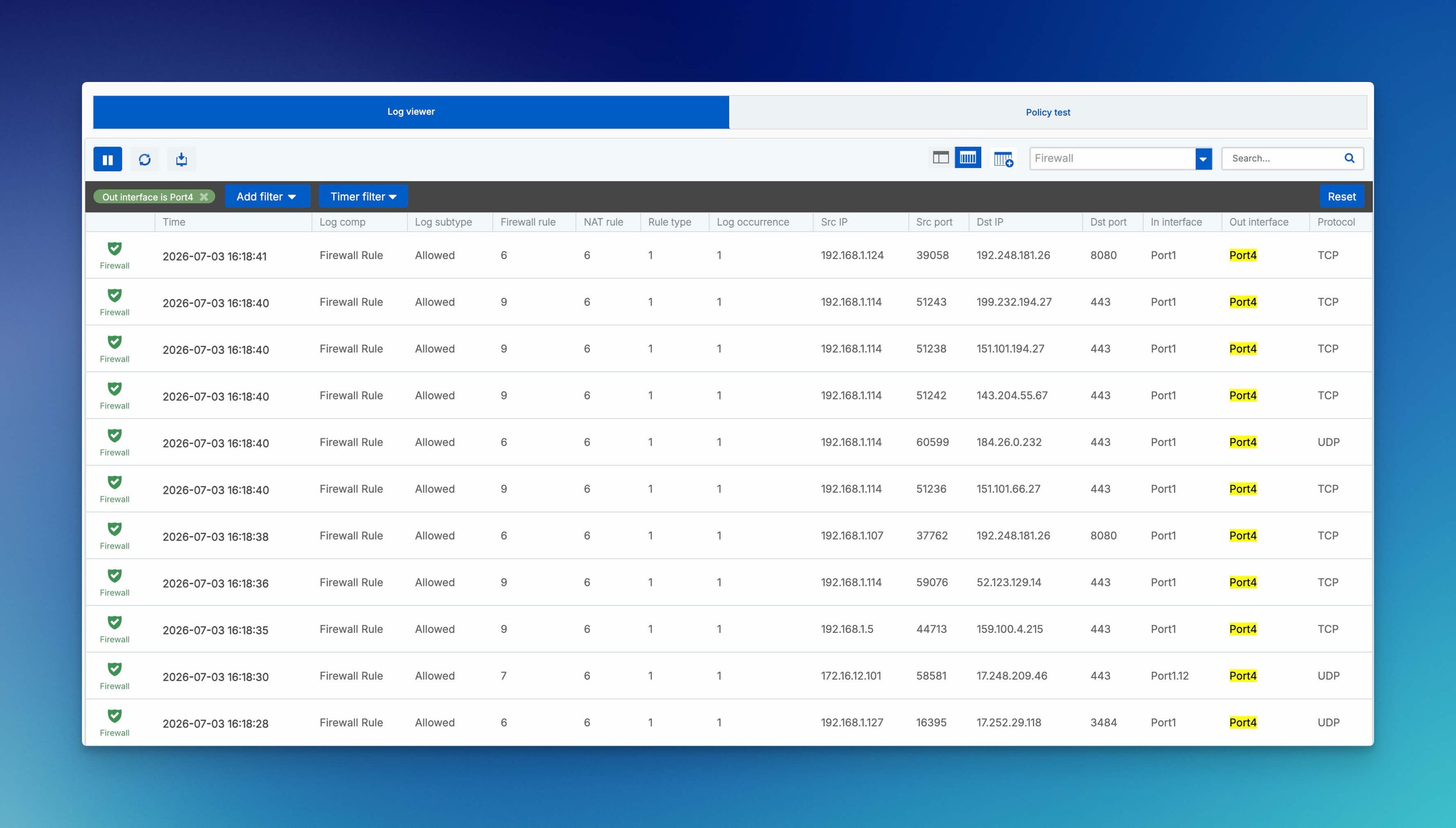
Step 2: Open Log Viewer
Open the Log Viewer at the top right of the WebAdmin console.
The complete workflow for modules, time and field filters, Detailed view, src_trans_ip, Log occurrence, and CSV export is explained in Use Sophos Firewall Log Viewer correctly.
Useful filters:
- Module:
Firewall - Source IP
- Destination IP
- Destination port
- Rule ID
- Rule name
- Action
- User
For web traffic, additionally check:
Web filterSSL/TLS inspectionApplication filterIPS
The Log Viewer updates automatically. For quiet analysis, you can pause the live view, filter, and then resume.
Firewall sessions do not necessarily appear immediately: Sophos Firewall normally writes the session log only when it receives a Destroy event and closes the connection. If a connection ends without a Destroy event, such as when internet connectivity is lost, the entry may be missing. SSL/TLS connections are logged after the handshake completes and when the connection closes. For a short test, deliberately close the test connection and then refresh Log Viewer; inspect a session that is still open under Current activities > Live connections.
Step 3: Reproduce the Test
The test should be executed from a defined client:
- Open website
- Send ping
- Test port
- Start application
- Establish VPN connection
- Download file
If possible, only one test should run at a time. Otherwise, logs and the data transfer count cannot be attributed unambiguously.
Then check:
- Does the data transfer count increase?
- Is there a log in the Log Viewer?
- Which Rule ID is displayed?
- Which NAT Rule ID is displayed?
- Is the traffic allowed or blocked?
- Does a security feature apply?
For a long-lived connection, open Current activities > Live connections, group by Source IP address or Username, and select the number in Total to open the details. The start time, inbound and outbound interfaces, source and destination, ports, Firewall Rule ID, and NAT Rule ID should match the test case. If the connection is absent while the client is establishing it, use Packet Capture next; look for an already closed connection in Log Viewer instead.
If the Log Viewer remains empty, that is not yet proof against the rule. First check logging, time filter, module filter, and real packet flow. Often, traffic does not reach the firewall at all, the rule is not logging, the wrong log type is disabled, or the test uses a different destination IP than expected.
Step 4: Use Policy Tester
The Policy Tester is helpful when you want to check which firewall rule, SSL/TLS inspection rule, or web policy would theoretically apply to web traffic.
Menu path:
SFOS 23: In the WebAdmin header, open Logs and policy test and select the Policy test tab. The SFOS 23 header section documents this entry point for testing which firewall rule and web policy apply to traffic. This is a version-specific entry point, not proof of actual packet flow; logs and, where needed, Packet Capture remain decisive.
SFOS 22: The existing Diagnostics route and the pop-out instructions below are retained. The new SFOS 23 header entry point does not establish that this route has been removed:
Diagnostics > Tools > Policy tester
Under Diagnostics > Tools, click Policy tester in the Pop-out tools section. The tool opens in a pop-up window. To run a test with a user context, first select Authenticated user and then the user to test.
Typical inputs:
- URL
- User
- Time and day
- Source IP
- Source zone
- Test method
For example, select Firewall, SSL/TLS, and web as the test method if you want to check the combination of firewall rule, SSL/TLS inspection rule, and web policy.
With Firewall, SSL/TLS, and web, the firewall rule and SSL/TLS inspection rule are determined based on the service in the URL and the specified source IP. Web protection is considered if it is configured in the firewall rule. The combined method can test traffic to any destination port; it is not restricted to HTTP and HTTPS. However, web protection details, including the matched web policy, appear only if the firewall rule applies a web policy and the test uses HTTP or HTTPS.
For Source zone, Auto-detection can determine the zone from the source IP. Select the zone explicitly if the tool detects the wrong one or if the test must be limited to a specific zone. The URL determines the protocol and port: https://www.example.com tests HTTPS on the default port 443; without a protocol, the tester uses HTTP. Specify a non-default destination port in the URL, for example testexample.com:21. If no port is specified, the test uses the default port of the detected protocol.
Once the URL, user context, time and day, Test method, source IP and Source zone are set, click Test.

The Policy Tester not only shows Accepted or Blocked but also the matched firewall rule, the recognized destination, the source zone, and depending on the test method, additional web or SSL/TLS information. This quickly shows whether the traffic fundamentally lands in the expected rule.
The linked name of a matched firewall rule or SSL/TLS inspection rule opens the corresponding rule table filtered to that rule. Reset filter displays all rules again. By contrast, open a matched web policy using the edit button next to its name. After an edit, rerun the same test with unchanged inputs. With Web policy only, firewall rules are not applied; this method checks only HTTP and HTTPS against the selected web policy.

Important:
⚠️ The Policy Tester does not replace a real packet flow test. Policy test results do not reliably map SD-WAN routes. Therefore, actual behaviour may differ if SD-WAN, routing, or gateways are involved.
The web traffic test uses the transparent-mode model. It does not fully reproduce a direct web proxy connection with an explicitly configured proxy. Rules with MAC addresses under Source networks and devices cannot be matched either. For these cases, a real client test, Log Viewer, and Packet Capture are decisive.
SFOS 22.0 GA Issue Fixed in MR1
Known issue NC-177587 affected SFOS 22.0.0 GA-Respin Build 411 and was fixed in SFOS 22.0.1 MR1 Build 490. In the GA release, Policy Test and Policy Route Test could incorrectly show traffic as blocked or assign it to the wrong rule even though production traffic was processed correctly.
Independently of this fixed issue, cross-checking real logs and packets remains important because the Policy Tester does not model a complete packet flow.
For admins, the consequence is important: If the Policy Tester shows an unexpected result, but Log Viewer, the data transfer count, and Packet Capture confirm the actual packet flow, do not immediately change firewall or NAT rules. First, check if it only affects the diagnostic display.
Practical procedure for contradictory results:
- Document the test with source IP, destination, service, and user clearly.
- Filter Log Viewer by source IP, destination IP, and service.
- Check Rule ID and NAT Rule ID from the actual log entry.
- Start Packet Capture with a narrow filter.
- Compare incoming, forwarded, and return traffic.
- Treat Policy Tester result as a hint, not as sole proof.
- Check firmware version and Sophos Known Issues before changing productive rules.
This caution applies especially in maintenance windows. An incorrect diagnostic result should not lead to working productive rules being reordered or NAT rules being adjusted without evidence.
The Policy Tester is particularly good for:
- Web policy
- URL categorisation
- User context
- Schedule
- SSL/TLS inspection rule
- Firewall rule matching for web traffic
It is less good for:
- Real routing decisions
- NAT return path
- Rules with MAC addresses under Source networks and devices
- Packet losses
- Provider or switch issues
- Applications with multiple connections and ports
Step 5: Use Packet Capture
If Log Viewer and Policy Tester are not enough, use Diagnostics > Packet Capture.
The filter should be set narrowly, for example:
- Source IP of the client
- Destination IP of the server
- Destination port
- Protocol
Then:
- Start Packet Capture.
- Reproduce the test.
- Stop Packet Capture.
- Compare incoming and forwarded events.
- Compare Rule ID and NAT ID with Log Viewer.
Before starting, open Configure. Number of bytes to capture (per packet) limits the bytes recorded from each packet, and Enter BPF string accepts the narrow capture filter. The capture buffer is 2048 KB. Without Wrap capture buffer once full, capture stops automatically when the buffer is full; with it, the oldest data is overwritten. For a reproducible rule test, a short non-wrapping capture is usually easier to analyse.
Packet Capture doesn’t only show individual packets on an interface. Depending on the packet, the WebAdmin output can also show processing details, for example Firewall Rule ID, NAT ID, user, web or application filter context, and whether a packet was forwarded, consumed, generated, or dropped. That’s why Packet Capture is so strong when a rule supposedly doesn’t match: it connects packet flow and policy view better than a pure ping or port test tool.
Interpretation:
- No packet arrives: Check client, VLAN, switch, gateway, provider, or Cloud Security Group.
- Packet comes in but does not go out: Check firewall rule, NAT, routing, or security feature.
- Packet goes out, response is missing: Check return route, target system, NAT, or external firewall.
- Packet has
Violationstatus: Check policy, IPS, web filter, or Application Control. - NAT ID is unexpected: Check NAT order and generic NAT rules.
More on this: Using the Packet Capture Tool in WebAdmin. If packets are dropped, Analyze Dropped Packets on Sophos Firewall is also helpful.
Read Log Viewer and Packet Capture Together
Log Viewer shows the decision; Packet Capture shows the packet flow. In practice, both views are often needed.
- Log Viewer shows expected Rule ID, Packet Capture shows
Forwarded: The rule test is plausible for the firewall. Return path and target system still need separate checking. - Log Viewer shows expected Rule ID, Packet Capture shows no reply: Check target system, return route, NAT, or external firewall.
- Packet Capture shows
Incoming, but no matching log: Check logging, module filter, default rule, Device Access, or drop analysis. - Packet Capture shows
Consumed: Traffic ends on the firewall itself. Check Device Access and Local Service ACL. - Packet Capture shows
Violation: Compare reason, Rule ID, NAT ID, and security module with Log Viewer.
If both tools appear contradictory, narrow the test case first. One client, one target, one port, and a short test time are better than a broad capture with lots of background traffic.
Special Case: Web Traffic on Ports 80 and 443
A firewall log showing Allowed does not automatically prove that browser access was allowed. When a firewall rule with action Drop matches traffic on port 80 or 443, the firewall can pass the incoming packet internally to the web proxy. The Firewall module then shows Allowed, while Web filter records Blocked and returns a block page. With Reject, the firewall log remains Rejected.
For HTTP and HTTPS, therefore check at least the Firewall and Web filter modules for the same time. Sophos also states that web exceptions can apply even when the firewall rule action is Drop. If access unexpectedly still works, check the matching entries under Web > Exceptions rather than treating the Rule ID alone as proof.
Use Narrow Packet Capture Filters
Packet Capture is only helpful if the filter is narrow enough. A too broad capture quickly shows too much background traffic, especially on productive firewalls with web, DNS, VPN, or server traffic. The filter should therefore be derived from the defined test case.
Practical BPF examples:
- Single client to one target:
host 172.16.10.25 and host 203.0.113.10, when source and destination are known. - Client to HTTPS target:
host 172.16.10.25 and port 443, when the target can change via DNS or CDN. - Only outgoing traffic of a client:
src host 172.16.10.25, when first checking whether the client is sending at all. - Only response traffic to the client:
dst host 172.16.10.25, when return path or response packets are missing. - DNS test:
host 172.16.10.25 and port 53, when name resolution and rule test should be checked separately. - ICMP test:
icmp and host 172.16.10.25, when a ping serves as a simple reachability test.
For DNAT or VPN tests, pay special attention to the direction of view. A filter on the internal server IP does not necessarily show the original access to the public IP. Conversely, a filter on the public IP does not automatically show whether the traffic reaches the internal server after NAT. In such cases, two short captures are often cleaner: first on the public side, then on the internal target.
After the test, stop the capture immediately. Long captures increase the risk of capturing unnecessary user data, internal hostnames, or foreign connections.
When to Switch to tcpdump
The WebAdmin Packet Capture is ideal for quick tests. However, it is not sufficient for every case. Switch to tcpdump if any of these points apply:
- The capture should be evaluated as a PCAP file in Wireshark or by support.
- The test runs longer than a short manual reproduction test.
- Very precise BPF filters are needed, for example, for VoIP, VPN, DNS, or multiple hosts.
- The WebAdmin buffer fills up or only shows a section.
- The relevant traffic must be observed on a specific interface over a longer period.
Also with tcpdump: Set filters narrowly, note test time, keep capture short, and remove the file after transfer. The practical CLI guide is in Sophos Firewall tcpdump: Capture Packets via CLI.
Step 6: Validate Security Features Individually
If the correct rule matches but the traffic does not work, the activated features should be checked individually.
- Web policy: Check category, user, schedule, and policy order.
- Scan HTTP and decrypted HTTPS: HTTPS is only scanned if it is already decrypted.
- SSL/TLS inspection: Check matching rule, Decryption Profile, and CA certificate on clients.
- IPS: Check signature, policy, and possible false positives.
- Application Control: Check recognised application, category, and cloud app detection.
- Security Heartbeat: Check whether the endpoint sends Heartbeat and whether status is green, yellow, or red.
- Traffic Shaping: Check whether the policy is active and matches the correct application or rule.
- NAT: Check correct SNAT, DNAT, or PAT rule and rule order.
For HTTPS: A firewall rule with web filtering is not enough to inspect HTTPS content. It also requires a matching SSL/TLS inspection rule with decryption and distributed CA certificate.
More on this: Roll Out TLS Inspection on Sophos Firewall Step by Step. For NAT errors, Understanding NAT on Sophos Firewall is suitable because a NAT rule does not allow traffic but only translates addresses or ports.
Step 7: Check Log Files
If WebAdmin tools are not enough, the appropriate log files should be checked.
Typical files:
- Firewall rule:
firewall_rule.log - NAT:
nat_rule.log - Firewall connections:
fwlog.log - IPS and DPI:
ips.log - Web Proxy:
awarrenhttp.log - IPsec:
strongswan.log,charon.log - SSL VPN:
sslvpn.log - DNS:
dnsd.log,dnsgrabber.log - DHCP:
dhcpd.log
Which log file belongs to which module is summarised in Sophos Firewall troubleshooting: services and logs.
In support cases, a log archive or CTR is only really helpful if the test time and expected IDs are documented. A large log package without source, destination, port, user, Rule ID, and NAT ID often only leads to more follow-up questions.
Roll Back Changes Safely
Run the first test without changing a policy. If a rule position, filter, or temporary test rule must then be changed, record the original value first and change only one item per run. After the test, restore the original value or position and repeat the same client test. Log Viewer should again show the original Rule ID and action; then disable or delete a temporary test rule. Stop Packet Capture and clear its display so unnecessary packet data does not remain in the buffer.
Example: Testing LAN to WAN Web Rule
- Create firewall rule
LAN_to_WAN_Clients. - Enable logging.
- Set services to
HTTPandHTTPS. - Select web policy.
- Leave
Block QUIC protocolenabled. - Enable
Scan HTTP and decrypted HTTPS. - Create SSL/TLS inspection rule for the test group.
- Install CA certificate on the test client.
- Select Reset data transfer count.
- Open website.
- Filter Log Viewer by source IP.
- Run Policy Tester for the same URL.
- Start Packet Capture if there is a discrepancy.
This shows whether the rule matches, whether HTTPS is really decrypted, and whether web filter, IPS, or application control intervene.
Documenting the Test Result
After a rule test, the result should be briefly documented. This is especially important if a support case, maintenance window, or later rule cleanup arises from it.
Useful are:
- Date and time of the test
- Source IP, user, destination, service, and tested URL or application
- Enabled log targets, for example Log Viewer, Sophos Fusion, or Syslog
- Expected and actually matched firewall Rule ID
- NAT Rule ID, if NAT is involved
- Action in Log Viewer
- Screenshot or export from Packet Capture if the packet flow was relevant
- Changed rule, web policy, SSL/TLS inspection rule, or NAT rule
- Open point if the behaviour is not yet fully explained
For productive changes, also note whether the rule is intended only for a pilot, permanently, or as a temporary workaround. Temporary test rules should have an expiration date or a clear owner so they do not remain as legacy in the rule set.
If the rule test turns into a support case, also document log archive, Packet Capture or tcpdump PCAP, affected time range, and causes already excluded. For this part, Secure Sophos Firewall logs for support and analysis fits.
FAQ
How do you properly test a Sophos Firewall rule?
When is the Log Viewer sufficient for a rule test?
Why does the Log Viewer show nothing even though a test was run?
When should you use Packet Capture instead of Policy Tester?
What Packet Capture filter should be used?
Why can the Policy Tester differ from actual traffic?
NC-177587; it was fixed in SFOS 22.0.1 MR1 Build 490. Continue to cross-check contradictory results with Log Viewer, the data transfer count, and Packet Capture.When do you need tcpdump on the Sophos Firewall?
tcpdump is useful when a longer capture, a PCAP file, a very precise BPF filter, or a support case is needed. For short tests in WebAdmin, Packet Capture is usually faster.