
Understand and safely configure Sophos Firewall rules
A Sophos Firewall rule determines which traffic between zones, networks, users and services is allowed or blocked. The goal is not to enable as many options as possible, but to use suitable match criteria, the correct order, appropriate security features and a reproducible test.
The menu path is:
Rules and policies > Firewall rules > Add firewall rule > New firewall rule
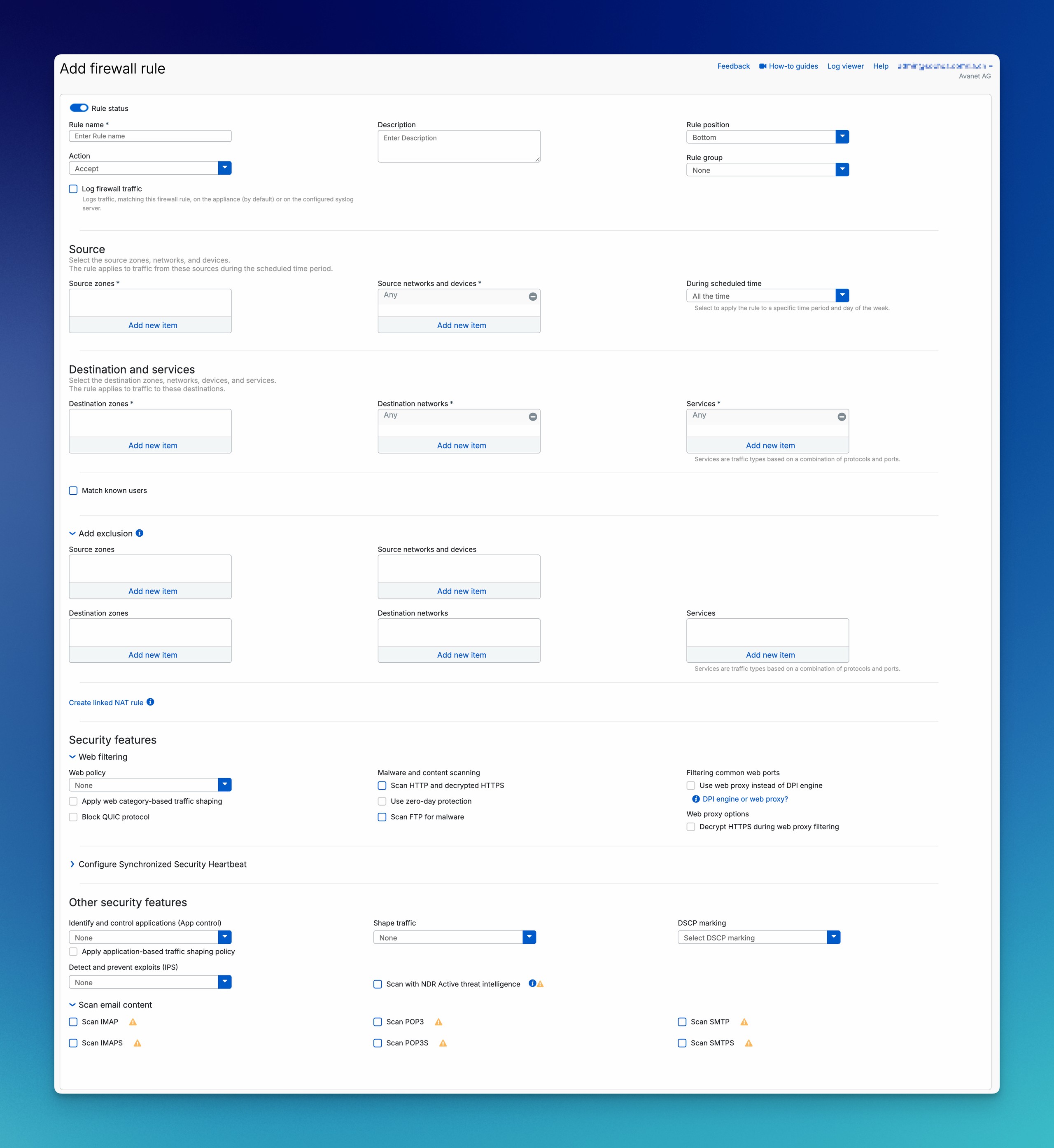
This article explains the rule form from top to bottom and uses the example LAN_to_WAN_Clients throughout. It covers specialist topics such as NAT, TLS Inspection and IPS only as far as they are relevant to the firewall rule; detailed guides are linked at the appropriate point.
Plan before creating the rule
Identify the correct control point
Normal firewall rules control forwarded traffic that passes through the firewall. Other tasks are configured elsewhere:
- Local firewall services: WebAdmin, User Portal, VPN Portal, SSH, DNS and SNMP are controlled through Administration > Device access, Local Service ACL and the respective service configuration. See Device Access and Local Service ACL.
- System-generated traffic: Connections initiated by the firewall itself do not require a normal firewall rule. The relevant controls are the service configuration, routing, WAN Link Manager and, where applicable, SD-WAN for system traffic.
- Address and port translation: NAT translates traffic but does not allow it. The firewall rule and NAT rule must work together.
- Routing and return path: A matching firewall rule does not prove that routing, SD-WAN, VPN or the return path is correct.
- Web logic: Web categories, URL groups and actions are defined in the Web Policy. The firewall rule applies that policy.
- HTTPS decryption: An SSL/TLS inspection rule decrypts the traffic. Scan HTTP and decrypted HTTPS only scans HTTPS that has already been decrypted.
- User identity: AD SSO, STAS, Captive Portal, Entra ID SSO or RADIUS must first map the user reliably to the traffic. Devices without a login can be configured as Clientless Users when they have a fixed, unambiguous IP; this assignment isn’t authentication.
Management access through the firewall to servers, switches or hypervisors belongs in normal firewall rules. Access to the firewall itself belongs under Device Access.
Rule order, IPv4 and IPv6
Sophos Firewall evaluates rules from top to bottom. Once every match criterion of a rule is met, subsequent rules are not evaluated. A general LAN_to_WAN_Any rule placed above LAN_to_WAN_Restricted therefore makes the specific rule ineffective.
A rule can match on criteria including Source zone, Source network, schedule, Destination zone, Destination network, Service, user and Exclusions. All configured criteria must match the connection.
Automatically generated MTA, IPsec or Hotspot rules can appear at the top of the list. The Server Access Assistant also creates a firewall rule together with DNAT, reflexive SNAT and loopback. The order should therefore be checked again after using wizards, performing migrations or changing VPN settings. For a Sophos Firewall hotspot, this check is an explicit part of the setup process; the guide to DNAT for published servers explains the Server Access Assistant.
⚠️ Before creating the logged Drop rule: Do not assume it preserves existing HTTP/HTTPS blocking: the documentation conflicts on
Drop, authentication, Web Exceptions, and block pages. For any web traffic, written Sophos clarification for the exact SFOS version, build, and processing path or explicitly authorized, isolated verification is required before production rollout. Follow the verification, rollback, and escalation guidance under Action and logging below.
If SFOS finds no matching rule, the implicit drop-all rule with Firewall Rule ID #0 applies at the bottom. It shows no Usage Count and does not generate a normal firewall traffic log entry. To make these drops visible in Log Viewer, Central Reporting or syslog, create a narrowly scoped Drop rule with Log firewall traffic enabled at the end of the rule base. Select the Source and Destination zones actually required individually instead of zone Any; otherwise, the rule can also match internal traffic to local services. See Analyzing dropped packets on Sophos Firewall for details.
IPv4 and IPv6 rules are managed separately. A working IPv4 rule does not automatically protect the same service over IPv6. In dual-stack environments, both rule sets must be deliberately planned and tested.
Separate the rule base clearly
Before creating a rule, define its Source, Destination, Services, Owner and test case. Traffic with different risks should not be combined in one blanket rule:
- Client internet access: Client networks to the WAN zone, with a suitable Web Policy, Application Control, IPS and logging.
- Server internet access: Only the required update, backup or cloud destinations, generally without user matching.
- Guest Wi-Fi: Guest zone to the internet, without internal destinations and, if required, with a bandwidth limit.
- Management: Defined admin networks to servers and infrastructure, separate from normal client traffic.
- Remote Access VPN: VPN zone to the specific internal destinations and services required.
- Site-to-site: Local and remote networks with suitable routing, NAT and return path.
- Published systems: WAN to a DMZ or server zone with a tightly restricted source, DNAT or WAF, IPS, logging and a current patch level.
- Temporary access: A separate rule with a ticket, Owner, expiry date and planned removal.
For help with the network structure, see Configure Sophos Firewall zones and interfaces.
⚠️
Anycan be useful for a short test, but is rarely a good final configuration. Afterwards, restrict the rule to the sources, destinations and Services actually required, or remove it again.
Practical example: LAN_to_WAN_Clients
In this example, clients from a defined LAN are allowed to access the internet. Servers, guests, VoIP and management use separate rules.
- Rule name:
LAN_to_WAN_Clients - Description:
Internet access for the client network. Web filtering, App Control and IPS enabled. Owner IT, review 2026-12-01. - Rule position:
Bottom, then place it below specific block and exception rules - Rule group:
Internet Access - Action:
Accept - Log firewall traffic: enabled
- Source zones:
LAN - Source networks and devices:
net_LAN_Clients - During scheduled time:
All the time - Destination zones:
WAN - Destination networks:
Any - Services:
HTTP,HTTPSand only the basic services that clients actually access directly on the internet - Web policy:
Default Workplace Policy - Block QUIC protocol: enabled
- IPS: suitable client policy
- App control: suitable client application policy
- Shape traffic: only for a specific bandwidth objective
- DSCP marking: only if downstream devices process the marking
Add DNS and NTP to this LAN-to-WAN rule only if clients communicate directly with external resolvers or time servers. If they use the firewall as their DNS or time service, this is local traffic.
Acceptance testing must use a defined client, a specific destination, the expected Firewall Rule ID, the expected NAT Rule ID and the Log Viewer. This confirms not only that the application works, but also that the intended rules process the connection.
Configure the firewall rule
Header
Rule status, Rule name and Description
Rule status is enabled by default for a new rule. Rules prepared in advance can remain disabled until the maintenance window. Permanently disabled test or migration rules should be reviewed regularly.
The name should identify the Source, Destination and purpose, for example:
LAN_to_WAN_ClientsGuest_to_WAN_WebOnlyServer_to_WAN_UpdatesVoIP_to_WAN_SIP_RTPWAN_to_DMZ_HTTPS_Webserver
The Description records the purpose, Owner, ticket, restrictions and, where applicable, the expiry date. Names such as Rule1, Allow or Internet provide little help during later operations. See How to document Sophos Firewall rules clearly for the Avanet approach.
Rule position and Rule group
When creating a rule, Rule position in SFOS 22 offers Top or Bottom. After saving, the rule can be moved in the rule table or positioned precisely with Move To. Use Top only when a specific rule must deliberately take precedence over existing rules.
Rule group improves readability but does not change the matching logic. None is the default. With Automatic, SFOS assigns the rule to an existing group based on the first matching rule type and the Source and Destination zones. The firewall still evaluates each individual rule from top to bottom. A group cannot remain empty. The SFOS 22 help describes detaching an individual rule with Detach before moving it out of a group; alternatively, move the entire group. Deleting the last rule in a group also deletes the group.
The SFOS 23 help describes a different workflow: for a filtered search, click the search box, select a suggested criterion, and complete the search using the additional suggestions. Press Enter to filter the rule table. To search by rule name, type it directly in the search box and press Enter; remove individual filters with x. Use Show/Hide columns to select the visible columns, change their order by clicking and dragging, and freeze up to three columns so they are always shown first. Enable or disable rules through Status, or in bulk with Turn on / Turn off; a mixed selection of enabled and disabled rules prevents that bulk action. Disabled rules appear faded with a strikethrough name. Dragging a rule at least one position outside its group removes its membership; dragging it between two rules in another group adds it to that group. The View menu offers Clone rule above/below, Add rule above/below, Move To, and Edit group. Hover over Features for details: distinguish user/network type and rule action from policy actions and heartbeat thresholds. In the SFOS 23 table, User means Match known users is selected and Network means it is not; policy icons distinguish None, Accept, Drop, and Reject, while heartbeat icons distinguish Green, Yellow, and No restriction. This presentation does not prove a traffic-engine change.
For new installations, the SFOS 22/23 help lists a LAN-to-WAN rule and the MTA rule with linked NAT automatically created when MTA mode is enabled; MTA is enabled by default there. This does not replace checking your own installation. The implicit rule #0 cannot be edited, deleted, or moved, and filters do not apply to it. Reset Sophos Firewall explains the different post-reset state for SFOS 22.
Action and logging
Action determines how matching traffic is handled:
- Accept: Allows the connection.
- Drop: Is documented as discarding non-web traffic without notification. HTTP/HTTPS behavior is not universally assured because of the documentation conflict described below.
- Reject: Discards it and sends a TCP reset or an appropriate ICMP response for UDP and ICMP.
- Protect with web server protection: Creates a WAF rule. This option is available only for IPv4 and requires Webserver Protection. The configuration is covered in Sophos Firewall WAF.
⚠️ Unresolved documentation conflict for web traffic: The SFOS 22/23 rule-form help describes
Dropaccepting and examining HTTP/HTTPS, authenticating unknown users when Use web authentication for unknown users is enabled, permitting requests allowed by a matching Web Exception, and displaying an HTML block page for other requests. The dropped-traffic logging guide instead describes silent discarding generally and ties the web block page to that authentication option. These contradictory descriptions have not been resolved here as verified behavior of a particular SFOS build. They do not establish silent discarding of all web connections, a block page dependent solely on the authentication option, or blanket blocking of all services.
If guaranteed blocking or a specific response is required, obtain written Sophos clarification for the exact SFOS version, build, and processing path, or verify in an explicitly authorized, isolated test environment. Test non-web traffic, HTTP, and HTTPS separately; for web traffic also cover known/unknown users, authentication on/off, and a matching Web Exception present/absent. Use only defined test clients, destinations, and services, enable Log firewall traffic, and generate fresh connections. Record the build, rule position, Firewall Rule ID, user, Action, web/TLS settings, and log, Packet Capture, and browser results. A timeout, block page, or Policy Tester alone does not prove the intended blocking. If access is unexpected or the result is unclear, do not roll out to production; revert test changes and escalate the evidence to Sophos Support. Reject provides the protocol response described above; it is not recommended here as an unverified substitute for web control.
Log firewall traffic should be enabled for important rules. Logs are stored locally on the firewall by default; check local log settings and Syslog destinations under System services > Log settings. Sending logs to the cloud service additionally requires enabling Sophos Central services on the Sophos Central page. The SFOS 22 help calls the destination Sophos Fusion (formerly Sophos Central), while the SFOS 23 help calls it Sophos Central; the name does not replace this separate prerequisite. Without a Destroy event, a session may end without a final session log, for example after an abrupt line failure.
For longer retention, use Central Firewall Reporting or a Syslog/SIEM server. Logging supports not only troubleshooting but also reviews: Which sources match the rule, which destinations are used, and is the access still appropriate?
The same checkbox is the data source for NetFlow v5 on Sophos Firewall: without Log firewall traffic, NetFlow does not export this rule’s connections.
Source, Destination and Services
The Source section defines where the traffic originates:
- Source zones: For example
LAN,VPN,DMZ,GuestorWAN. - Source networks and devices: Individual hosts, networks, IP ranges, groups, FQDN hosts or country objects.
- During scheduled time:
All the time, business hours or a maintenance window.
The zone alone is usually too broad. The client example therefore combines LAN with net_LAN_Clients. For scheduled rules, the firewall time, time zone and schedule must all match.
Set up Sophos Firewall schedules for rules and policies shows how to create, assign, and test recurring and one-time time windows at their switching boundaries.
Under Destination and services, configure:
- Destination zones: For example
WAN,DMZ,LANorVPN. - Destination networks:
Any, a host, network, group, country object or FQDN host. - Services: Protocol and port definitions such as
HTTP,HTTPS,DNS,NTPor a custom service.
For guidance on creating IP hosts, networks, ranges, lists, services, and groups and checking them before changes, see Use Sophos Firewall hosts and services correctly.
Any can be acceptable for a general client internet rule. Server, management and VPN rules should use much more restrictive destinations and Services. For dynamic cloud destinations, FQDN hosts and wildcard FQDNs may help.
Users, Exclusions and Linked NAT
Match known users
With Match known users, users or groups become match criteria. Depending on the configuration, further fields then become available:
- Use web authentication for unknown users: Redirects unknown web users to AD SSO or Captive Portal. Authentication and access from the affected zone must already be configured. Set up and test Sophos Firewall Captive Portal shows how authentication, Device Access, the DNS prerequisite, and the user rule work together.
- Users or groups: Restricts the rule to selected identities.
- Exclude this user activity from data accounting: Excludes this user traffic from individual data usage accounting.
A user rule works only with reliable user mapping. A broad fallback rule below it must not allow the same traffic without user matching. During acceptance testing, the user, group and Rule ID shown in the Log Viewer must be consistent with the test case.
Add exclusion
Add exclusion excludes traffic from this rule. SFOS skips the rule only when all configured exclusion criteria match, and then evaluates the next rule.
Available criteria are Source zones, Source networks and devices, Destination zones, Destination networks and Services.
A useful exclusion might be an update server that is excluded from a general client rule and handled by a separate rule above it with different security features. If exclusions become numerous or difficult to understand, a separate specific rule is usually clearer.
Create linked NAT rule
Unlinking a Linked NAT Rule in the NAT table makes it editable and evaluated independently of the original firewall rule using its own criteria. Document its scope and NAT order before unlinking, then verify a fresh test flow; this is not simply a rename.
A Linked NAT Rule is a Source NAT rule that applies only to traffic handled by the linked firewall rule. The NAT rule primarily defines the translated Source and interface-specific Source translation.
Many installations already have a Default SNAT rule with MASQ. However, this depends on the setup and migration status and must be checked in the specific NAT rule table. Before adding a Linked NAT Rule, check whether an existing rule already handles the traffic correctly. If an independent NAT rule higher in the list matches, it takes precedence over the Linked NAT Rule.
For DNAT, SFOS first determines the translated destination and then uses its zone for firewall rule matching. A port forward to a server in the DMZ therefore typically requires Destination zone DMZ in the firewall rule, even though the client connects to the public WAN address.
If the NAT Rule ID is unexpected, also check the order under Rules and policies > NAT rules. Create a new connection after NAT changes because existing sessions are not evaluated again. NAT does not allow traffic by itself: The firewall rule decides whether to Accept or Drop, while NAT translates addresses or ports. See Understanding NAT on Sophos Firewall for details.
Select security features
Not every option is available with the Base License. Before rollout, check under Administration > Licensing:
- Normal firewall rules: Base License
- IPS and Security Heartbeat: Network Protection
- Web Security, Application Control and web malware protection: Web Protection
- Sandboxing and file analysis: Zero-Day Protection
- Email protection: Email Protection
- WAF: Webserver Protection
- NDR Active threat intelligence: Xstream Protection Bundle
Standard Protection and Xstream Protection include Web Protection. The Avanet Epic Protection bundle also includes Web Protection. See Compare Sophos Firewall license bundles for the complete overview.
Web Filtering
Web policy applies a Web Policy containing categories, URL groups, users and actions. Without a Web Policy, this field provides no category-based web control. Create and test the policy under Web Protection.
Apply web category-based traffic shaping uses the bandwidth settings from the web categories. This option is useful only if limits or guarantees are actually configured there.
Block QUIC protocol blocks outbound UDP on ports 80 and 443 for this rule. QUIC cannot be scanned like normal HTTP/HTTPS traffic and bypasses Web Filtering. SFOS enables the option by default when a Web Policy or malware scanning is selected. See Block QUIC and HTTP/3 for details.
Scan HTTP and decrypted HTTPS scans HTTP and already decrypted HTTPS for malware. The option does not enable decryption. This requires a matching SSL/TLS inspection rule under Rules and policies > SSL/TLS inspection rules.
Use Zero-day protection submits suspicious downloads for additional analysis after malware scanning. This feature requires Zero-Day Protection and can introduce a delay depending on the file type and policy.
Scan FTP for malware is needed only if the rule allows FTP. Test the scan separately for legacy systems.
Use web proxy instead of DPI engine limits proxy filtering to the standard ports 80 and 443. The web proxy is required for features including SafeSearch, YouTube restrictions, Google Workspace domain restrictions, Pharming Protection, Web Cache and Parent Proxy. In DPI mode, SSL/TLS inspection rules apply to HTTP and TLS on all ports.
Configure an upstream proxy on Sophos Firewall explains the additional rule and NAT chain for a parent proxy. A proxy in WAN requires a different path from one in LAN or DMZ.
An explicitly configured Direct Web Proxy client, by contrast, uses the listener even without this option. Set up Direct Web Proxy with a PAC file explains the complete design with port, Device Access, PAC file, rule, and tests.
Decrypt HTTPS during web proxy filtering belongs to web proxy mode. In DPI mode, decryption is controlled by SSL/TLS inspection rules. Web Exceptions can bypass decryption, malware scanning, Zero-Day Protection and Policy Checks, and should therefore be narrowly scoped and reviewed regularly.
Synchronized Security Heartbeat
Heartbeat rules require:
- a firewall registered with the same Sophos Fusion account and Security Heartbeat enabled;
- a managed Sophos Endpoint with a trial or full license;
- Network Protection on the firewall.
To detect missing heartbeats, select the affected zones under System > Sophos Fusion > Optional configurations > Missing heartbeat zones.
Minimum source HB permitted and Minimum destination HB permitted define a minimum health status. Destination Heartbeat is suitable only for internal destinations, not for the WAN zone.
For both thresholds, Green allows only Green; Yellow allows Green or Yellow; No restriction also allows Red and devices without a heartbeat. Check the separate no-heartbeat blocking options as well. The missing-heartbeat guide distinguishes a lost heartbeat from one never sent; Synchronized User ID covers sign-out after heartbeat loss or sleep/wake and validation of a fresh sign-in.
The options Block clients with no heartbeat and Block request to destination with no heartbeat address devices without a heartbeat. A device that has never sent a heartbeat remains allowed by default and is blocked only when both options are enabled. This must be tested deliberately with devices that do not run Sophos Endpoint.
A Web Exception that skips Policy checks can allow web requests despite Block clients with no heartbeat. See Analyze missing Security Heartbeat alerts for the practical verification process.
Application Control, IPS and Traffic Shaping
Identify and control applications (App control) applies an Application Filter Policy. Application Control requires Web Protection. For URL-based micro apps in encrypted traffic, such as file uploads and downloads within Dropbox or Gmail, a suitable decrypting SSL/TLS inspection rule is required. Filters, logs and false positives are explained in Configure Application Control.
Malware and content scanning uses the settings under Web > General settings. Selecting web proxy filtering first requires a web policy or Scan HTTP and decrypted HTTPS. An Application Filter Policy for URL-based micro apps still applies in the decrypting DPI path with Web policy None, malware scanning off, and ATP off. This does not remove the separate activation conditions for Web Exceptions in DPI mode. The detailed guides cover proxy filtering on a bridge without an IP address and HTTPS decryption with Direct Web Proxy.
Apply application-based traffic shaping policy uses the bandwidth policy assigned to an application or category under Applications > Traffic shaping default. Application Objects, by contrast, are used for SD-WAN routes. A Rules policy selected through Shape traffic shapes all traffic handled by the firewall rule. The current help for the rule form does not describe the priority between an Application policy and a Rules policy. For a predictable design, use only one method per use case and test any required combination on the deployed SFOS build. When Match known users is enabled, however, the user’s Traffic Shaping Policy applies; if the user has no policy, the policy of their group applies.
Detect and prevent exploits (IPS) applies an IPS Policy. IPS requires Network Protection or a valid trial license and must be enabled globally under Intrusion prevention > IPS policies. Client, server, web server and VoIP traffic require different, tested policies. See Configure and test IPS for a safe rollout.
Shape traffic assigns a Traffic Shaping Policy to the entire rule, for example for VoIP, meetings, backups or guests. Guarantees and limits must match the available WAN bandwidth. See Configure Application Traffic Shaping for more information.
DSCP marking marks only outgoing IPv4 and IPv6 packets that match this rule. It overwrites a DSCP marking already present on incoming traffic. Reply packets and system-generated traffic are not marked by the firewall rule. Marking alone does not prioritize or classify anything; all participating switches, routers and WAN devices must process the selected DSCP values consistently.
A narrowly scoped QoS test uses a defined client, an approved test destination, and ICMP with AF31 = 26. After confirming the rule match, inspect the marking with Packet Capture at WAN egress and check the reply separately. CS0 = 0 is the reply in the documented example, not a guarantee about arbitrary peer markings. Do not create a broad Any permission for this test; remove the test rule afterwards. Test a Sophos Firewall rule explains the capture workflow.
NDR Active threat intelligence
Scan with NDR Active threat intelligence checks the traffic against curated NDR signatures. The action is fixed at Log threats: The feature detects and logs events but does not block the traffic.
Requirements are:
- Xstream Protection Bundle;
- global activation of NDR Active threat intelligence;
- enabled IPS logging;
- selection of the option in each relevant firewall rule.
XGS Appliances, virtual, software and common cloud deployments are supported, but XGS 87, 87w, 88 and 88w are not. XDR or MDR and forwarding to Sophos Fusion are optional for further analysis.
Scan email content
Under Scan email content, one can select IMAP, IMAPS, POP3, POP3S, SMTP and SMTPS. The protection requires Email Protection. If the standard ports are missing under Services, add them through Add ports.
Email traffic should not be hidden in a general client internet rule. A separate email rule makes the Source, Destination, protocols, logging and security features clearer.
For an existing SMTP server published through DNAT, Configure Mail Protection in legacy mode connects the inbound and outbound rules with NAT, scan policy, TLS, and the legacy proxy logs.
For mail retrieval, the checkbox alone isn’t sufficient: CA trust, global scan limits, an optional POP-IMAP policy, and the actual rule match must fit together. Scan and test POP3 and IMAP on Sophos Firewall provides the complete pilot and validation process.
Test and operate the rule
Acceptance testing after saving
After configuring the rule, save it with Save. It is complete only when the defined test case produces the expected results:
Make only one change per test so that cause and effect remain attributable.
- Check the rule position and Rule group.
- Check Log firewall traffic and the destinations under System services > Log settings.
- Generate exactly one test connection from a defined client to a defined destination and Service.
- Check the Firewall Rule ID, Rule name, user and Action in the Log Viewer.
- Check the NAT Rule ID and translated addresses.
- Verify DNS and routing separately.
- Validate the Web Policy, Application Control, IPS and TLS Inspection against the expected action.
- Check for unexpected drops, SSL/TLS errors or performance problems.
- Remove the test rule or restrict it to the production objects.
The Policy Tester simulates rule selection but does not generate real packet flow and confirms neither routing nor the return path. See Test a Sophos Firewall rule for the complete workflow using Policy Test, Log Viewer and Packet Capture.
New rule, existing rule or disabling
An existing rule can be expanded if the Source, Destination, purpose, Owner and required protection remain the same. A separate rule is better when logging, expiry date, Security Features, responsibilities or review cycles differ.
Temporary support access, servers, guests, VoIP, IoT and management should not disappear inside a general client rule. For unclear legacy rules, controlled disabling is usually safer than immediate deletion:
- Clarify the purpose, Owner and dependencies.
- Define logging and the test window.
- Inform the affected teams.
- Disable the rule and run defined tests.
- Remove it only after a traceable observation period.
A rarely used emergency rule can be important. Conversely, a frequently used broad rule is not automatically secure.
Revert a rule change
Before making a change, record the current position and all affected fields, or export a traceable configuration state. An existing rule should not be repurposed: a new rule that is initially disabled provides a clearer rollback path and leaves the existing access unchanged.
If acceptance testing fails, disable the new rule or, for an edited rule, restore the previous values and its former position. Then generate both the allowed test flow and a deliberately disallowed test flow again and verify the expected Firewall Rule ID in the Log Viewer. When changing the management path, independent administrative access must remain available throughout the process.
Data counter, review and change record
Reset data transfer count resets the amount of data transferred through a rule. It is not a session or hit counter. In the SFOS 22 help, Sophos documents Unused differently in two places: the help for the rule table states 24 hours without matching traffic, while the Active firewall rules Control Center widget states 12 hours and a daily check. The status is therefore not a reliable deletion criterion. New and Changed each remain for 24 hours from creation or modification, and a rule can have several statuses at the same time. In the SFOS 23 help, both the rule table and the widget state 12 hours for Unused. This is a documentation comparison, not a timing measurement tested on an appliance build.
Active firewall rules shows the active-rule count and matching traffic in bytes over the past 24 hours. The widget distinguishes WAF (web server protection), User (with users or groups), and Network (without those criteria). Scanned means the total rule count in the chart, not the number of malware-scanned rules. Disabled means configured but turned off; a disabled rule can also be Changed. Hover to inspect data volume; click a count or status to open the correspondingly filtered rule table.
The Control Center widget is visible to all administrators, regardless of their rights. Its visibility therefore doesn’t prove write access on the actual rule page. Evaluate these indicators together with logs, the rule description and the use case. Reports > Dashboards > Traffic dashboard > Allowed policies also helps analyze transferred data. If an expected rule is missing from the table, first reset the active filter; the SFOS 22 help also restricts group actions in a filtered view.
Regular reviews should check at least:
- Source, Destination and Services;
- remaining
Anyobjects; - Owner, ticket and expiry date;
- logging and actual use;
- NAT, Web Policy, IPS, TLS Inspection and other security features;
- disabled, temporary and automatically generated rules.
A backup should be available before major changes. Audit Trail Logs and Config Studio show configuration changes. For groups managed through Sophos Fusion, the Firewall Management Task Queue confirms whether the change reached the correct appliance. The Firewall Health Check complements the regular security review.
Typical errors
- The expected rule does not match or Rule ID
#0appears: Check the order, IPv4/IPv6 and all Source, Destination, Service, user and Exclusion criteria. - The Firewall Rule ID is correct, but the NAT Rule ID or packet path is not: Check the NAT order, routing, SD-WAN and return path.
- The rule matches, but protection is missing or the application fails: Check the license, global activation, logging, Web Policy, QUIC, TLS Inspection, IPS and Traffic Shaping Policy individually.
If the Rule ID, NAT ID or packet path is unexpected, Sophos Firewall rule does not match provides a structured troubleshooting process.