
Implementing Sophos Firewall TLS Inspection Correctly
With TLS Inspection, Sophos Firewall terminates the client’s encrypted connection and establishes a second connection to the destination server. It can inspect the plaintext between the two. The firewall re-signs the server certificate presented to the client with its own CA (Certificate Authority). If the client does not trust this CA, it displays a certificate warning or terminates the connection.
This enables checks on decrypted content, such as malware and content scanning. Without decryption, protection features may be limited, depending on the module, to information such as the IP address, domain, SNI, certificate or protocol metadata. That does not justify a broad initial deployment: certificate pinning, privacy, application compatibility and the additional firewall load must be addressed before rollout.
The safe short version is: determine whether to use the DPI or Web Proxy path, distribute the re-signing CA to a small group, document the current state, create a narrowly scoped Decrypt rule, run one positive and one negative test, and only then expand the scope.
Decide before the pilot
License, CA and ownership
SSL/TLS Inspection Rules and URL Groups used in them are enforced with the Base License. Web Protection is not a general prerequisite for TLS Inspection. It is required when web categories are used as rule criteria or when the corresponding Web Protection features are needed. Malware, Zero-Day and other inspections each require the relevant subscription. What Sophos Firewall Bundles Are Available? and Understanding Sophos Firewall Base License explain the differences.
Clarify the following before creating the first rule:
- Document the SFOS version in use, the available license and the intended inspection path.
- Define a managed pilot group and a clear time window. The example below uses client
10.20.30.50from test network10.20.30.0/24; replace these values with your own objects. - Obtain approval from the responsible privacy stakeholders for the scope, logging, retention and user notification.
- Back up the exact initial state of the firewall rule, TLS rules, Decryption Profile, CA and any global settings.
- Name the owner, abort criteria, exception process and rollback path.
The re-signing CA must be in the trust store of the affected operating systems or browsers. Alternatively, use a subordinate enterprise CA. A publicly trusted CA is not available for this purpose because the firewall re-signs certificates for third-party domains. With an external CA, both the root and subordinate CA must be imported; if the signing CA contains an EKU section, it must permit TLS Web Server Authentication. Install Sophos Firewall CA Certificate for HTTPS Scanning describes distribution, while Set up a subordinate CA for Sophos Firewall TLS inspection covers the enterprise CA method.
⚠️ Do not start with all users. Devices without a manageable trust store, BYOD and applications using certificate pinning should initially remain in a separate scope. An exception restores the connection, but excludes its content from decryption.
Keep DPI and Web Proxy separate
SFOS uses the DPI engine by default. On this path, the firewall processes the Firewall Rule first and then the SSL/TLS Inspection Rules. The Inspection Rule does not itself allow traffic: even Services: Any only means that TLS traffic already permitted by the Firewall Rule on any TCP port is eligible for this Inspection Rule.
For the DPI path, open Rules and policies > Firewall rules, edit the relevant LAN-to-WAN rule and check Security features > Web filtering:
- Leave Use web proxy instead of DPI engine disabled.
- Select a Web Policy only if the planned protection requires it; it is not a prerequisite for the Decryption Rule.
- Scan HTTP and decrypted HTTPS enables malware scanning for HTTP and HTTPS that has already been decrypted. The option does not itself enable HTTPS decryption.
In Web Proxy Mode, the proxy handles HTTPS decryption. Decrypt HTTPS during web proxy filtering is the relevant setting on the proxy path. DPI rules under Rules and policies > SSL/TLS inspection rules do not apply to connections decrypted by the Web Proxy. With the transparent proxy, ports 80 and 443 pass through the proxy while SSL/TLS on other ports can still be handled by the DPI path; with the Explicit Proxy, the Web Proxy performs decryption.
The CAs are separate as well: DPI uses the CA from the SSL/TLS settings or the selected Decryption Profile. The Web Proxy uses the CA from Web > General settings. When changing mode, check not only the rules but also the CA actually presented. Choose DPI Engine or Web Proxy correctly explains the differences in more detail.
This outbound inspection path is not intended for web servers published to the internet. Web Server Protection / WAF or a reverse proxy is usually the more suitable architecture there. SSL/TLS Inspection Rules apply to outbound traffic, so only internal zones can be selected as Source zones. They detect TLS on any TCP port, but are not enforced over UDP.
Handle QUIC deliberately
QUIC, or HTTP/3, uses UDP. Block QUIC protocol in a Firewall Rule drops outbound UDP packets to ports 80 and 443 within that rule’s scope, forcing clients to fall back to an inspectable TCP path. SFOS selects the option by default as soon as a Web Policy is selected in the rule or Scan HTTP and decrypted HTTPS is enabled. This is per rule, not global, so check the Firewall Rule that actually matches.
This web filter cannot scan QUIC. That does not mean every other firewall control is bypassed, but the expected TCP TLS and web-filter path does not apply. Correctly Blocking QUIC and HTTP/3 on Sophos Firewall shows the rule test; Creating a Sophos Firewall Web Protection Policy covers the Web Policy.
Select scope by purpose and risk
The usual starting point is managed user traffic from LAN to WAN. A separate corporate wireless network can follow as Wi-Fi > WAN. For Remote Access, VPN > WAN is only relevant when users’ internet traffic actually traverses the firewall through a Full Tunnel. Include internal connections from LAN to a DMZ only when content inspection has a clear benefit there and both sides trust the re-signing CA.
Technical compatibility and permission to decrypt are separate decisions. Banking, healthcare and government portals, password managers, identity providers, operating-system and vendor updates, and voice, video and collaboration services require a functional and privacy assessment before inclusion. Pinning or a pilot failure does not justify a blanket exception for an entire category: first identify the source, domain and application actually required.
Configure a complete pilot
For a pilot that can be tested directly, we use these example values:
- Pilot client:
10.20.30.50from the documented test network10.20.30.0/24 - Firewall Rule:
LAN to WAN - TLS pilot - SSL/TLS Inspection Rule:
TLS decrypt pilot client - Source zone:
LAN, Destination zone:WAN - Destination networks and Services:
Any - Action: Decrypt
- Decryption profile: initially Block insecure SSL or a pilot profile derived from it
- Logging: Log connections enabled for the pilot
10.20.30.0/24, the host IP and object names are examples. The production Source must be narrow enough to identify one client unambiguously. Any for Destination and Service makes it easier to observe TLS outside TCP 443 during the pilot; it does not broaden what the preceding Firewall Rule permits. If inspection is permitted only for a specific destination group, add a URL Group or another appropriate destination criterion.
Select a Decryption Profile
Under Profiles > Decryption profiles, three non-editable default profiles are available:
- Maximum compatibility maximizes compatibility and does not restrict ciphers.
- Block insecure SSL blocks weak ciphers and allows traffic that cannot be decrypted.
- Strict compliance applies strict requirements, including requirements based on PCI DSS.
Maximum compatibility can help isolate a problematic client temporarily, but its relaxed checks make it unsuitable as a production acceptance criterion. For the pilot, Block insecure SSL or a deliberately derived profile is the more transparent starting point. Tolerate old TLS versions or RSA keys below 2048 bits only for a named legacy server and in a narrowly scoped rule.
A custom profile can override the global SSL/TLS settings. The re-signing CA options are Use CAs defined in SSL/TLS settings, Re-sign RSA with and Re-sign EC with. For traffic that cannot be decrypted, the options are Use SSL/TLS settings default, Allow without decryption, Drop and Reject. The global-default reference does not apply to Unrecognized cipher suites; this case must be assessed explicitly in the profile. Depending on the setting, certificate errors, minimum RSA size, TLS versions and blocked ciphers use Drop, Reject or Reject and notify as their Block action.
Inspection does not make a self-signed server certificate or one with an incomplete chain trustworthy. Instead of hastily excluding it, first check the hostname, original certificate and complete chain.
With TLS 1.3, certificate errors, the minimum RSA size, a global downgrade and Reject and notify behave as documented only with Action: Decrypt. With Don’t decrypt or Deny, Reject is used for this profile handling instead. A global downgrade to TLS 1.2 introduces a security risk and is not a general compatibility fix.
Create the rule and check its order
Under Rules and policies > SSL/TLS inspection rules > Add, set the fields as follows:
- Rule name:
TLS decrypt pilot client - Rule position: Top, so the pilot rule precedes general custom Decrypt rules
- Action: Decrypt
- Log connections: enabled for pilot monitoring
- Decryption profile: the selected pilot profile
- Source zones:
LAN - Source networks and devices: host object for
10.20.30.50 - Destination zones:
WAN - Destination networks:
Any - Services:
Any - Categories and websites: empty or limited to the approved destination scope
Log connections is optional and is not required for the rule to work. It is nevertheless useful for a time-limited pilot because the handshake and connection closure can be traced. Retention must follow the agreed privacy and operations policy.
The table is evaluated from top to bottom and processing stops at the first match. All configured criteria must match simultaneously. The fixed default rule Exclusions by website or category remains at the top and cannot be preceded by selecting Rule position: Top. Place custom Don't decrypt exceptions immediately below it, followed by specific pilot rules and, finally, broader Decrypt rules.
User and group criteria are reliable only if SFOS knows the user context for the connection. If this is not guaranteed, start with an unambiguous host or network object and add identity criteria only after a separate match test.
Keep exceptions narrow
The default rule Exclusions by website or category uses Don’t decrypt with Maximum compatibility and remains in the first position. The Local TLS exclusion list is empty by default; the Managed TLS exclusion list contains known incompatible sites and is maintained through firmware updates.
Edit the local list at:
Web > URL groups > Local TLS exclusion list
URL Groups or SNI matches are more efficient for domain exceptions than many FQDN Hosts. According to Sophos, for example, 200 FQDN Hosts cause 200 lookups for each new SSL/TLS connection. Source and Destination exceptions also cannot be combined. Create and safely use URL groups explains domain scope, wildcards and negative tests.
A custom SSL/TLS Inspection Rule with Action: Don’t decrypt should record the domain, affected Source, reason, ticket, owner and review date. Don’t decrypt is not an unconditional bypass: the restrictions of the selected Decryption Profile still apply. To permit SSL 2/3, Compression or unknown ciphers for an explicitly approved legacy case, use a profile with Allow without decryption together with Action: Don’t decrypt. This combination does not belong in a broad internet rule.
SSL/TLS Exclusions and Web Exceptions solve different problems. A TLS exception controls Decryption on any TCP port in DPI Mode. A Web Exception changes selected Web Policy checks; in Proxy Mode, it affects the relevant proxy path. Before making a change, determine whether Decryption or only a web check should be excluded. Create and test Web Exceptions safely shows the selection and regex workflow.
Support Android with a narrow scope
Some Android connections use certificate pinning. Connectivity Check, Play Store or updates can then fail under Decryption. The workflow documented by Sophos uses an isolated VLAN or wireless network and an FQDN Host Group containing:
*.play.googlezip.net*.gvt1.com*.app-measurement.com- the local Google domain, for example
*.google.chin Switzerland
Above the general Decrypt rule, add an SSL/TLS Inspection Rule with Action: Don’t decrypt, Decryption profile: Maximum compatibility, Source zone: Wi-Fi, the mobile-device network as Source networks and devices, WAN as Destination zone, and the Google group as Destination networks. It sits below the fixed default exclusion but above the general Decrypt rule. Keep the mobile network isolated from sensitive internal resources.
Accept the change using one Android pilot device: run Connectivity Check, browser, Play Store download and update. In the Log viewer, only the expected Google destinations may match the exception; another HTTPS destination from the same VLAN must still use the intended Decrypt rule. This negative test prevents acceptance of an exception that works but is too broad. Create web exceptions and TLS exclusions safely covers further methods and SNI limitations.
Prove the effect
A policy simulation, a real client and the logs answer different questions. Combine them for a reliable acceptance test.
Under Diagnostics > Tools > Pop-out tools > Policy tester, select Firewall, SSL/TLS, and web and set the Source IP, Destination or URL, protocol and, if needed, the port. Without a protocol, the tool tests HTTP using the protocol-specific default port. Policy tester simulates transparent web traffic; it does not model SD-WAN routes, and rules with MAC addresses under Source networks and devices do not match there. Web policy only tests only the Web Policy. The result is therefore a prediction, not proof of the actual data path.
Run four targeted tests on the client:
- Before the change, record the destination domain, certificate issuer, response time and whether the business application works.
- Open an approved positive destination. The browser must show the re-signing CA selected for DPI as issuer, and the Log viewer must show a match for the expected Decrypt Rule and Decryption Profile.
- Open a deliberately excluded destination. It must match the expected
Don't decryptrule; the browser must not show a certificate re-signed by the firewall there. - A second, non-excluded destination from the same client scope must still be decrypted. This is the exception’s negative test.
If a Web Policy is part of the design, also block a test category or test URL specifically approved for this purpose. Run a malware test only with a documented, harmless vendor test object and a predefined expected result; this article makes no claim of a lab test. Before and after the pilot, compare CPU and memory load, response time and user errors over the same time window.
Read Control Center and Log viewer correctly
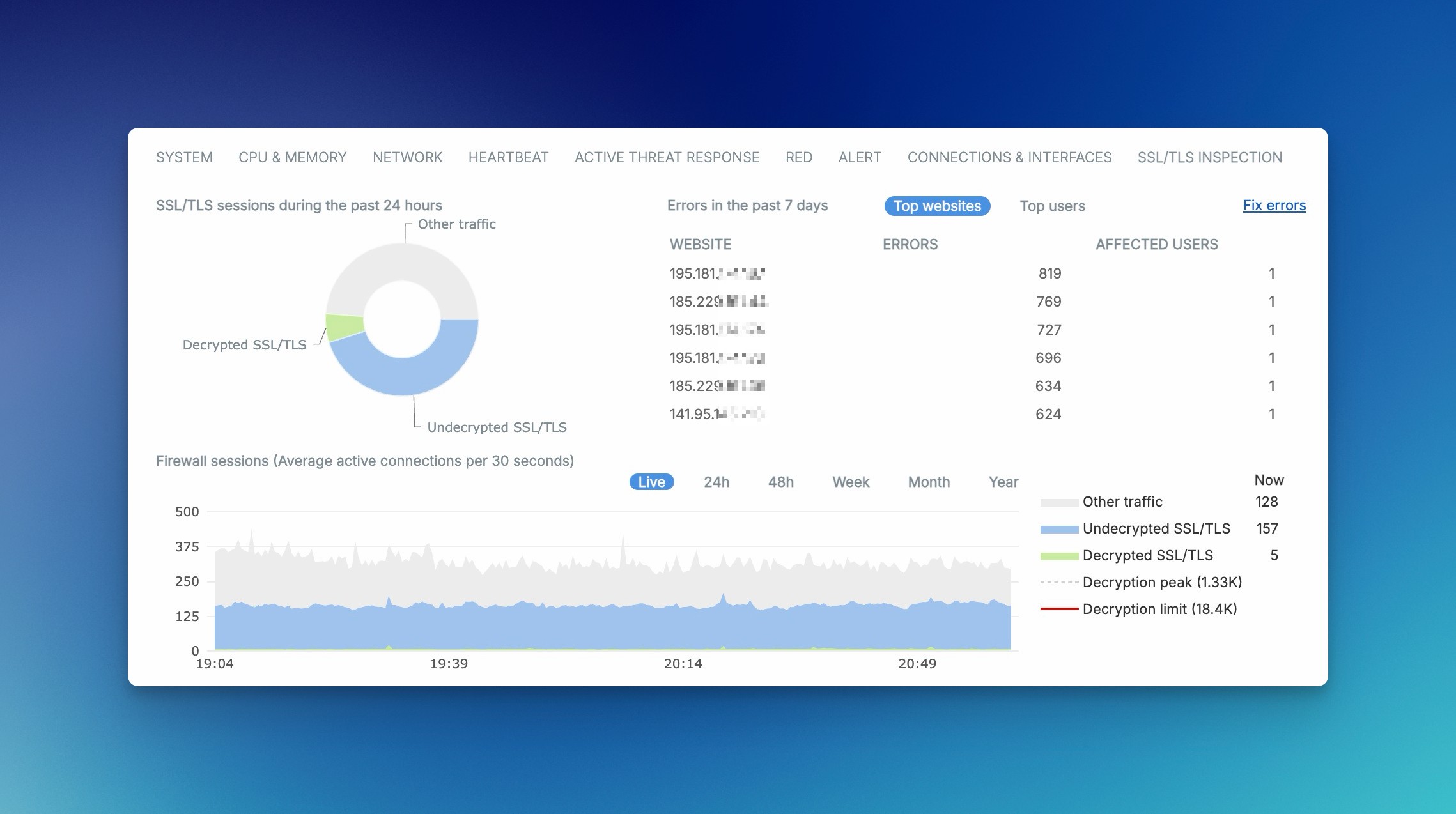
The Control Center widget is named SSL/TLS connections. Its details are updated every five minutes. Sessions cover the last 24 hours and errors the last 7 days; Failed resets at midnight. The detailed data does not include Web Proxy connections. Decryption peak appears only near or above the peak, and Decryption limit only near the device-specific limit. There is therefore no universal threshold for all appliances.
Open the Log viewer at the top right and select the SSL/TLS inspection module. A TLS connection is logged after the handshake completes and when it closes. Action, Rule, Decryption Profile, Source, Destination, Domain and the error reason matter; colours alone are not a reliable acceptance criterion. Under Manage > Exclude, you can add domains or subdomains to the Local TLS exclusion list and categories to the default exclusion. Exclude is not available for Error IDs 19004 and 19005.
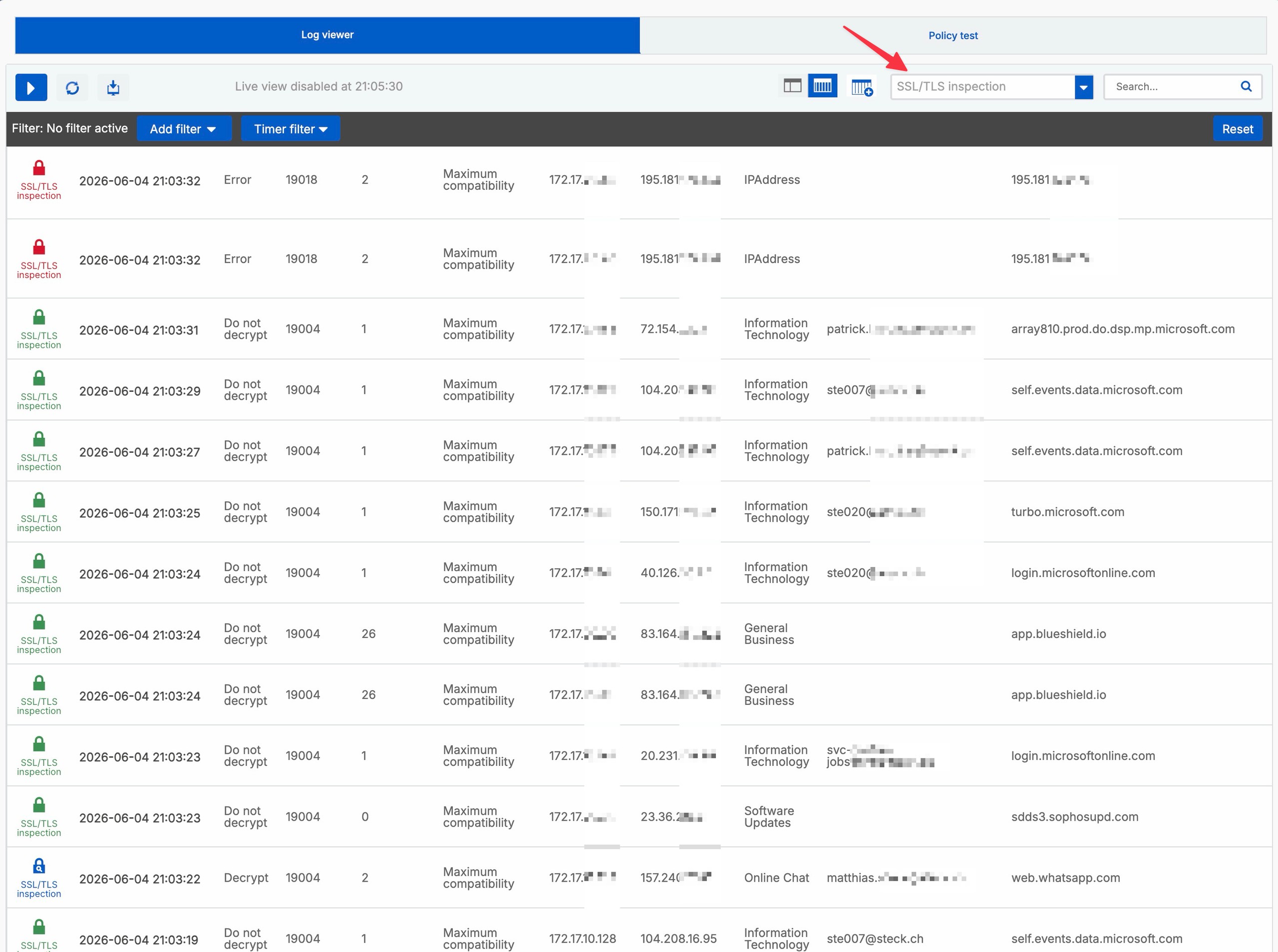
A Don't decrypt event proves only that the connection was not decrypted. Only the Rule, list match and negative test show whether the exception is justified and sufficiently narrow.
Troubleshoot and roll back safely
When an incident occurs, initially limit the case to one client, one domain, one point in time, one Firewall Rule and one SSL/TLS Inspection Rule.
- If the browser displays a certificate warning, compare the visible issuer with the CA used by the actual DPI or proxy path. Then check the client trust store, root/subordinate chain and hostname.
- If SSL/TLS events are missing, first check the Firewall Rule match and the mode. Then confirm that Rules and policies > SSL/TLS inspection rules and Advanced settings > SSL/TLS engine > Enabled are active.
- If traffic is allowed but not decrypted, search from top to bottom for the fixed default exclusion, Managed/Local List or a custom
Don't decryptrule. Then repeat the negative test. - If the web filter does not apply, check the actual Firewall Rule for its Web Policy, Scan HTTP and decrypted HTTPS, Block QUIC protocol and DPI/proxy mode. The presence of a Web Policy does not prove Decryption.
- If only one application fails, use the error reason, TLS version, cipher, certificate chain and pinning to guide the next decision. Keep any temporary exception narrow and give it a review date.
- If load increases, reduce the pilot scope and compare the same time window before and after the change. Assess peak or limit notices for the specific appliance.
Disable the SSL/TLS engine only briefly for troubleshooting. While disabled, no SSL/TLS Inspection Rules apply and the DPI engine does not apply the firewall Web Policy to HTTPS; Web Proxy HTTPS Decryption remains unaffected. Disabling it is therefore not an equivalent, low-risk substitute for disabling the pilot rule specifically.
Test port-agnostic IPS only with a known initial state
By default, SFOS checks decrypted traffic against IPS signatures on every TCP port. For a reproducible false positive, document the Signature ID, Source, Destination, TCP port, Firewall Rule, Inspection Rule and SFOS build. Prefer a narrow signature exception with Action: Allow packet in the IPS Policy actually in use; Configure and test Sophos Firewall IPS describes this method.
One possible symptom of a problem with port-agnostic inspection is repeated matches for the same IPS signature on the same website. Repetition alone does not prove a false positive. Match the exact Signature ID and destination against the logs, check the affected legitimate workflow and assess the risk before approving a narrowly scoped, reversible signature exception.
The more extensive inspection for potential threats may increase load and slightly reduce throughput for decrypted HTTPS traffic compared with older Sophos Firewall versions. This is a possible version-related effect, not a guaranteed decrease or proof of a regression in the build currently in use. To put the results in context, compare throughput, CPU and memory load, and response time under comparable traffic loads within the same time window; a single comparison does not replace root-cause analysis.
A global comparison in the Device Console is permissible only if the exact current value, on or off, is already known from the change record or a reliably backed-up configuration. The official SFOS 22 documentation gives no read-only pre-check for this switch. If the initial state is unknown, do not perform the test.
Only with a documented initial state of on may you set the following for one prepared comparison:
set ips scan_decrypted_port_agnostic off
set ips scan_decrypted_port_agnostic on
The second command here only restores the known initial state of on. If the initial state was off, do not enable it blindly; retain off, or restore it exactly after any authorized change. This global setting affects the entire firewall and may slightly reduce throughput or, with off, narrow the inspection scope. Document the result and time window without treating this alone as proof of a general cause.
Roll back in a fixed order
A rollback restores the documented initial state rather than introducing a new architecture:
- Disable the pilot rule
TLS decrypt pilot client. Do not change the profile, Web Policy and exceptions at the same time. - Using the pilot client, confirm that this Rule no longer matches and that the previously documented path is used again. Do not assume existing sessions are immediately re-evaluated; establish a new connection for the test.
- If only one destination is affected and operations require it, create a time-limited
Don't decryptexception and run its negative test. - After approval, remove temporary exceptions, test objects and CA settings distributed only for the pilot in a controlled manner. Do not remove shared CAs without checking.
- Record the Rule ID, client, destination, visible CA, log event, time and restored settings in the change record.
The Web Policy may remain configured, but without Decryption it cannot scan the encrypted HTTPS payload. Revert to Web Proxy only if that was the verified initial state. Do not disable the entire SSL/TLS engine as the standard rollback because that stops all DPI TLS rules and the application of the DPI Web Policy to HTTPS.
Stop the rollout as soon as a business-critical application fails, certificate warnings appear outside the pilot group, the scope matches more broadly than expected, or load and errors exceed the predefined limits. Expand the Source group gradually only after the positive test, exception negative test, business applications, logs, user feedback and load profile all meet the agreed criteria throughout the agreed period.
During operation, review exclusions, TLS errors, new applications, load and user feedback on a defined schedule. Keep temporary exceptions only while the owner, reason and review date remain valid; otherwise, remove them after a fresh positive and negative test.