
Plan Sophos Firewall zones and interfaces correctly
A zone groups interfaces with a similar level of trust. An interface is a physical or virtual connection, such as Port1, a VLAN, LAG, RED or XFRM interface. Each bound interface belongs to exactly one zone; physical ports can also remain unbound.
Important: A zone does not automatically allow traffic. Even between two interfaces in the LAN zone, a suitable LAN-to-LAN firewall rule is required. Access to the firewall itself, such as WebAdmin, SSH or DNS, is additionally controlled through Device Access.
Configure zones and interfaces directly
Create a zone
Go to Network > Zones > Add to create a custom zone in four steps:
- Enter a clear name, such as
Server,Management,GuestorIoT. - Select
LANorDMZas the Type. - Under Device Access, allow only the local firewall services that are actually required from this zone.
- Save the zone.
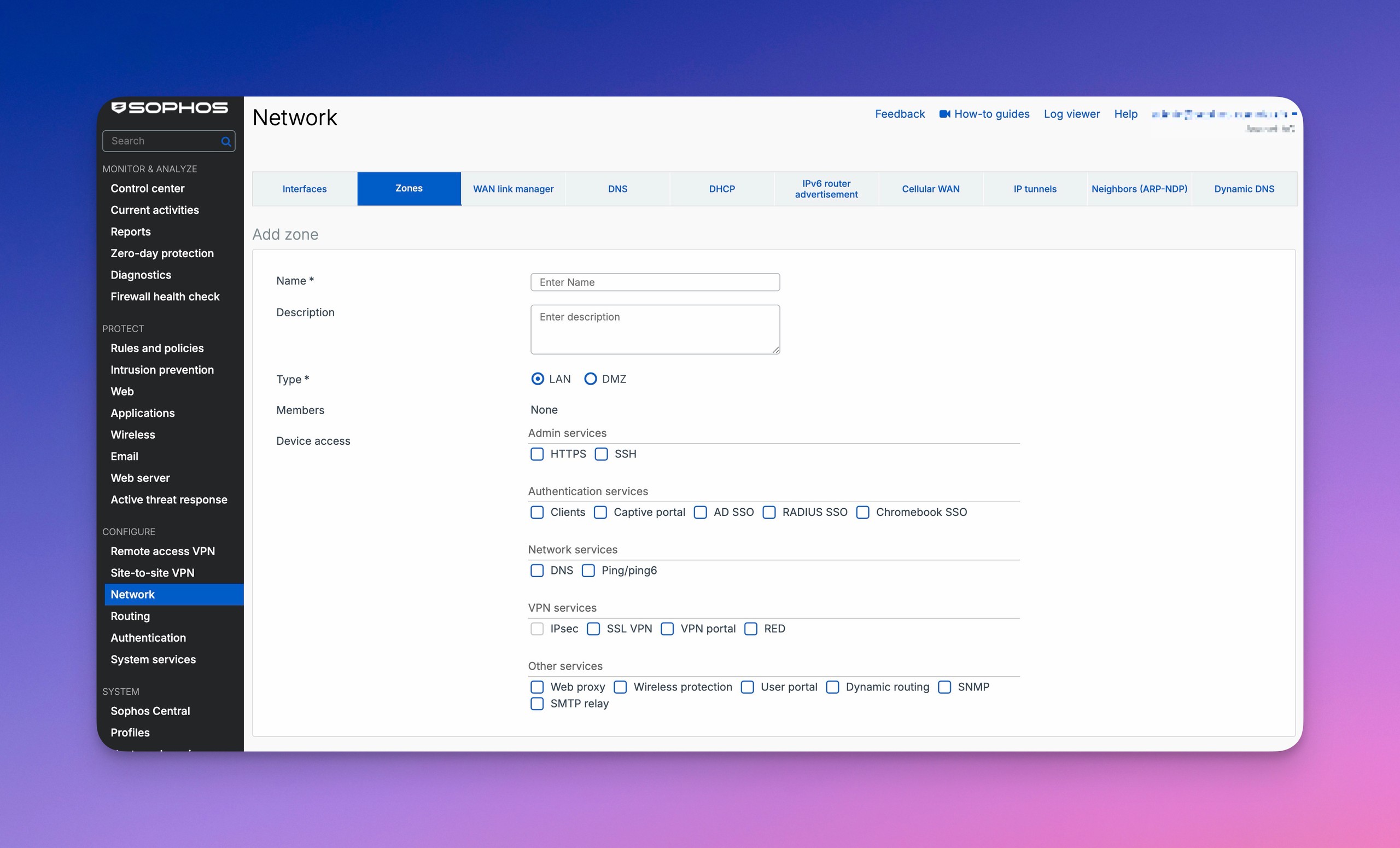
The zone should then appear under Network > Zones and be available as a Source zone or Destination zone in a firewall rule. Production traffic only uses the zone after at least one interface has been assigned to it.
Custom zones can only be created with the LAN or DMZ type. Additional WAN or VPN zones cannot be created. SFOS automatically assigns VPN interfaces to the VPN zone. The maximum number of zones depends on the version: SFOS 22.0 allows up to 100 zones, and SFOS 23.0 up to 248 zones.
Configure a physical interface
The number of available physical ports depends on the appliance model. When planning, first check which ports the specific device provides; virtual interfaces do not replace any additional physical ports required.
Edit an existing port under Network > Interfaces by selecting Edit interface:
- Enter a descriptive Name of no more than 58 characters, such as
Core Switch TrunkorMPLS Provider. - Select the appropriate Network zone.
- Configure IPv4 and, if required, IPv6.
- For WAN interfaces, check the gateway and, where applicable, MTU and MSS.
- Save the interface, then check the link status, gateway status and Log Viewer.
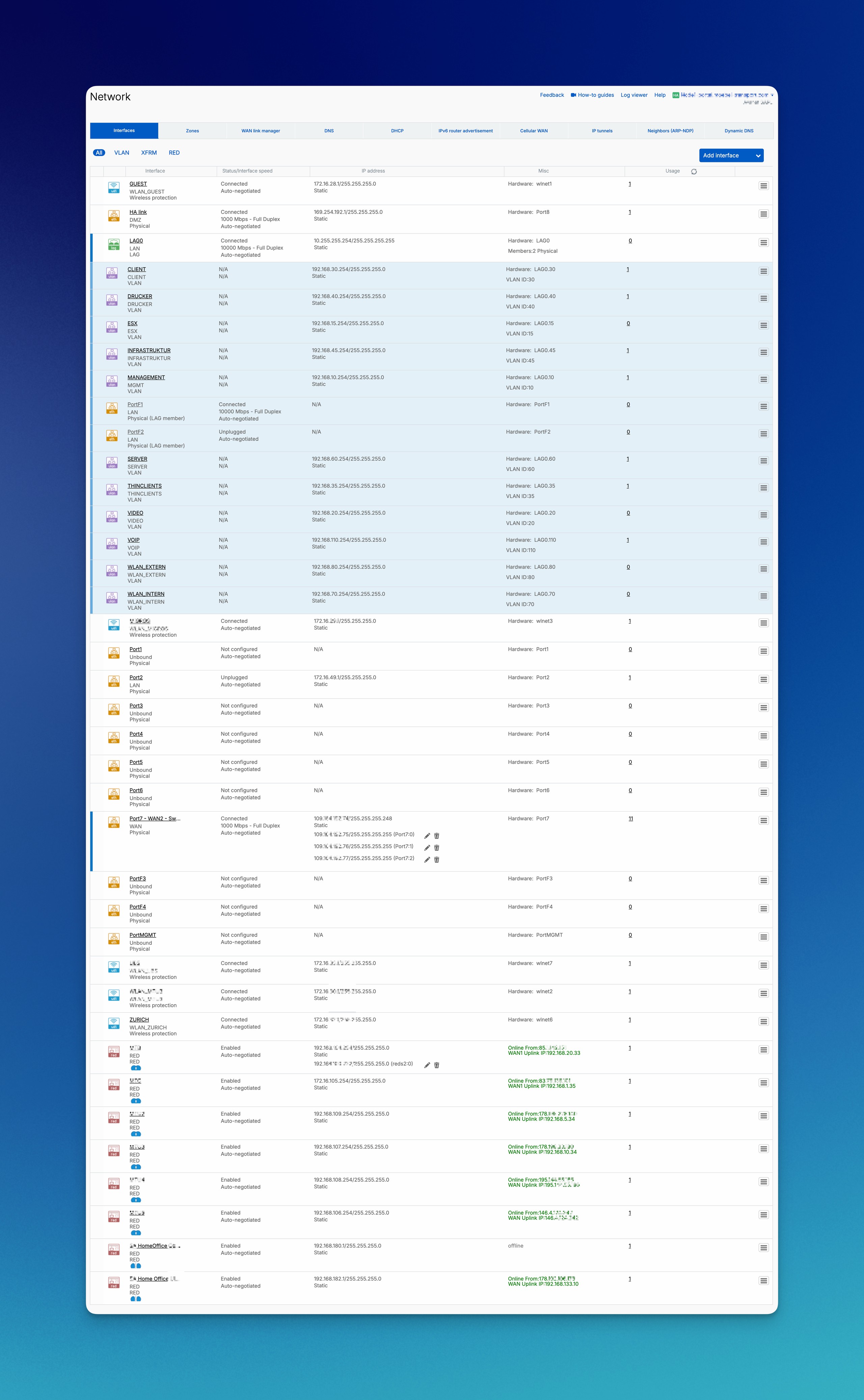
Only interfaces in the WAN zone have a gateway configuration. Internal interfaces normally use static addressing; WAN connections can use static addressing, DHCP or PPPoE.
If the physical interface already has a VLAN, SFOS doesn’t allow the IPv4 assignment to change from Static to DHCP or PPPoE. For IPv6, changing from Static to DHCP or Delegated is also blocked. Before making such a change, record the VLAN dependencies under Object usage. Then move the affected VLAN interfaces to another parent or remove them during a maintenance window. Change the assignment method only after that, then restore the VLAN configuration and test connectivity.
Under Advanced settings, match Link mode, Auto-negotiation for media type, model-dependent Forward Error Correction (FEC), MTU, and MSS with the peer device. For 25, 50, and 100 Gbps ports, save the Link mode first, reopen the interface, and then load the recommended configuration. On XGS 2100, 2300, 3100, and 3300 firewalls, all SFP+ ports in the FleXi Port modules must use the same speed. SFOS doesn’t support DSCP marking for system-generated DHCP and ARP traffic, so a policy must not rely on priority treatment for these packets.
The port speeds on the firewall and the peer device must match. For example, a 25-Gbit/s port cannot be connected to a 40-Gbit/s port using breakout cables without suitable conversion. Supported 40- and 100-Gbit/s ports on the firewall can be split into two or four ports using suitable breakout cables. This is not a guarantee for every appliance or cable combination; before planning, check support for the specific ports, transceivers and peer device.
Set an IPv4 address in the interactive recovery menu
Under 1. Network Configuration > Interface Configuration, the CLI displays IPv4 address and netmask, IPv6 address and prefix, zone, gateways and configured aliases for physical ports. VLAN and WLAN interfaces do not appear in this view.
Enter y to start an IPv4 change. SFOS displays the current address, netmask and zone for each port in sequence; press Enter without a new value to retain the field. This path applies only to Gateway mode and static IPv4 values. It cannot configure VLAN, DHCP, PPPoE, WLAN or WWAN, and the IPv6 dialog differs.
Before changing anything, save every displayed value, port ID, zone, gateway, aliases and an independent management path. After saving, verify link, new IP and netmask, gateway, Device Access, routing, DNS and the real management path. If access breaks or the data path is wrong, restore the original values through the console or independent access.
Correct link and MAC values in Device Console
WebAdmin remains the normal configuration path. Device Console is intended for a documented correction or recovery case because an incorrect link value can immediately interrupt the only management path. Record the port ID, peer, current link mode, autonegotiation, FEC, independent administrator access, and rollback first.
The official SFOS 22 syntax accepts 1000fd, 100fd, 100hd, 10fd, 10hd, or auto for the listed copper values:
set network interface-link Port2 linkmode auto autoneg on
set network interface-link Port2 linkmode 1000fd autoneg off
autoneg controls additional link parameters other than speed and duplex. FEC modes depend on the appliance model, and Sophos doesn’t provide a universal list in this CLI command. For 25, 50, or 100 Gbps ports, values aren’t copied from another model; the recommended port configuration for the exact appliance and transceiver is used.
Override a MAC address only for a verified design dependency. The example address is locally administered, but it must still be unique in the actual environment:
set network macaddr Port2 override 02:00:5e:10:00:02
set network macaddr Port2 default
Port security, DHCP bindings, provider allowlists, HA, and LAG are checked before the override. default restores the port’s existing default MAC address. Sophos documents MTU 1500 and MSS 1460 as defaults; they are changed only with the controlled process in Check MTU and MSS for VPN issues.
For IPv6, DAD attempts specifies how many Neighbor Solicitation messages the firewall sends during Duplicate Address Detection. Under Allowed RA servers, enter the MAC or IPv6 addresses of the Router Advertisement servers from which this interface may accept stateless configuration. IPv6 prefix delegation on Sophos Firewall explains the provider prefix and internal distribution, while Configure IPv6 router advertisements covers client flags and advertised prefixes.
For a specific task, use one of these focused guides:
- Set up and test a VLAN interface
- Set up and test SFOS-managed Wi-Fi
- Connect existing APX devices with a Wireless Mesh
- Configure a LAG interface
- Configure and test a GRE tunnel
- Carry IPv6 over IPv4 or IPv4 over IPv6 with an IP tunnel
- Forward multicast between interfaces with a static multicast route
- Plan and validate dynamic multicast routing with PIM-SM
- Set up and verify a PPPoE WAN
- Set up WAN failover with a second internet connection
- Set up Sophos SD-RED
- Secure Device Access
- Set up a site-to-site IPsec VPN
Plan the zone model
Distinguish between zones, interfaces and network objects
These three elements serve different purposes:
- Zone: identifies the security area that traffic comes from or goes to.
- Interface: connects the firewall physically or virtually to a network.
- Network object: identifies the specific IP address or subnet in a rule.
A rule is only precise when both the zone and network object are correct. Source zone: LAN combined with Source networks: Any is often unnecessarily broad. Conversely, a correct network object does not help if the packet enters through a different zone than the one specified in the rule.
The default zones have fixed roles:
LANfor internal networksWANfor provider and internet connectionsDMZfor exposed or particularly isolated systemsWiFifor wireless contextsVPNfor remote access and site-to-site tunnels
The WiFi zone applies to wireless networks that use a dedicated zone. With Bridge to AP LAN and Bridge to VLAN, however, no dedicated WiFi interface is created; the traffic path follows the selected bridge assignment.
A Wireless Network defines shared settings for wireless clients: SSID, security mode and how client traffic is handled. With the Traffic Mode Separate zone, the firewall creates an associated VXLAN tunnel. The choice of Traffic Mode therefore also determines how the wireless network connects to the firewall; it is not merely a label for the network.
Custom LAN zones are suitable for areas such as Client, Server, Management, Guest, IoT, VoIP, Backup or OT. A custom DMZ zone is appropriate for published servers, reverse proxies or other systems whose access to the internal network must be tightly restricted.
Not every VLAN needs its own zone. Multiple VLANs can share a zone when their trust level, firewall rules and Device Access settings are identical. If their permitted destinations, management access or security features differ, a separate zone is usually clearer.
Do not create custom VPN zone types for VPN users or site tunnels. Segmentation within the VPN zone is achieved with precise network objects, users and firewall rules.
Define traffic directions before creating rules
Before configuration, a short list of permitted directions is sufficient. For example:
ClienttoWAN: required web, DNS, NTP and application servicesClienttoServer: defined application ports onlyGuesttoWAN: internet access, but no access to internal networksIoTtoServer: only required destinations such as DNS, NTP or a management platformManagementto internal zones: tightly restricted and logged administrative servicesDMZtoLAN: blocked by default, with only explicitly required connections allowedVPNtoServer: approved destinations and services only
For each permitted direction, document the destination, services, NAT requirements, logging and owner. These details form the actual rules. Configure Sophos Firewall rules correctly explains their structure, order and matching behavior.
Check before making a change
Before creating or moving an interface, clarify at least the following points:
- zone and trust level of the network
- IP address, subnet and default gateway
- DHCP source and DNS servers
- required local firewall services
- firewall and NAT rules
- routing and SD-WAN
- test client, expected access and expected log entry
Production changes also require a current backup, a rollback path and a check under Object usage.
Create and validate a VLAN
A VLAN forms an isolated broadcast domain: broadcasts remain within that VLAN. Assigning multiple VLANs to the same security zone does not remove this Layer 2 separation; the zone determines the context for firewall rules and Device Access.
Create a VLAN under Network > Interfaces > Add interface > Add VLAN. The key settings are:
- Interface: physical, RED, bridge or LAG interface on which the tagged VLAN arrives
- Network zone: security area for the VLAN
- VLAN ID: must match the switch and, where applicable, the access point
- IPv4/IPv6 configuration: usually a static gateway address for an internal VLAN
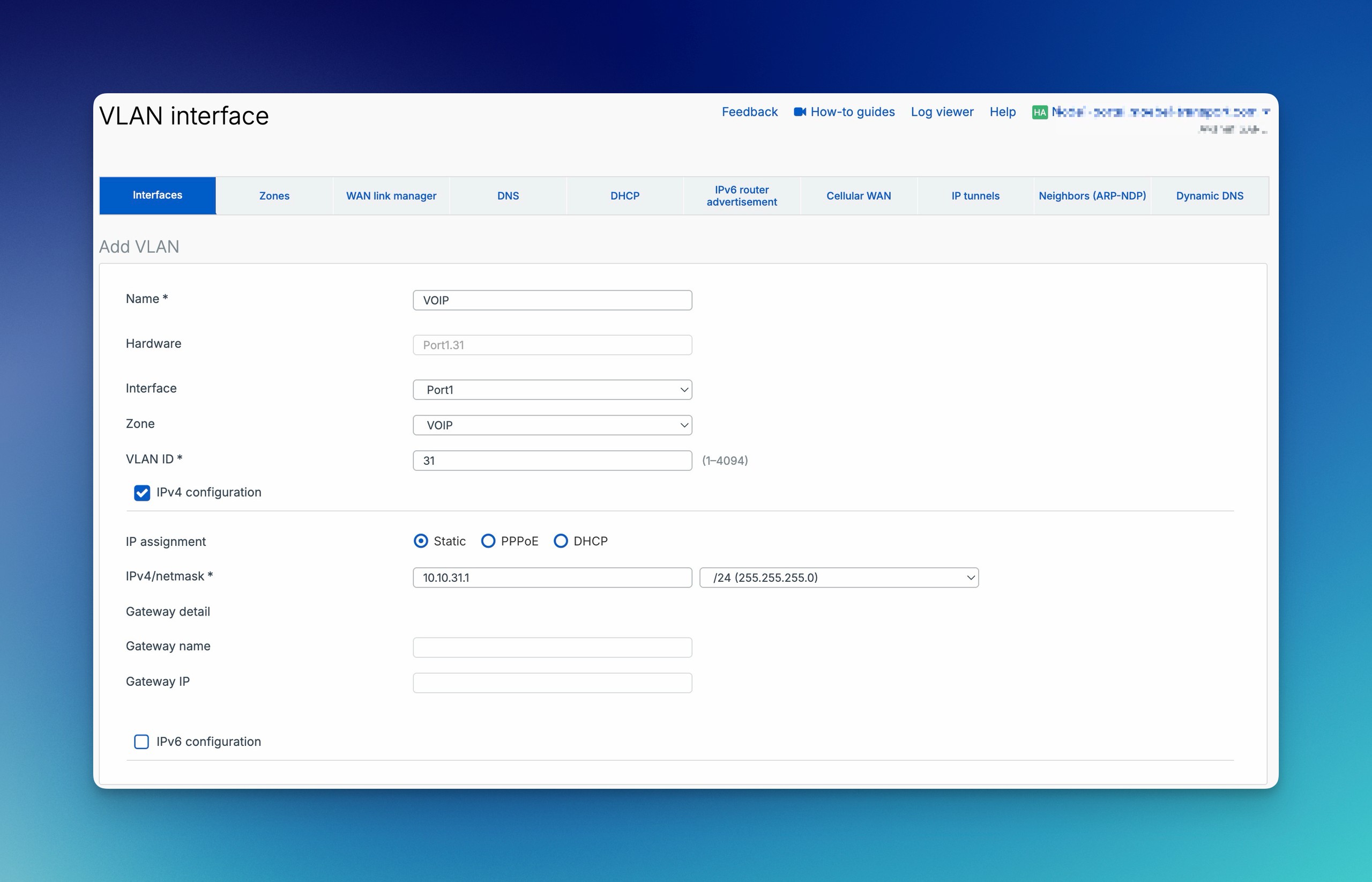
For example, a guest VLAN could use Port3, VLAN ID 20, the Guest zone and gateway address 192.168.20.1/24. On the switch, VLAN 20 must be tagged on the uplink to Port3; a client port or guest SSID then assigns endpoints to this VLAN.
The firewall can display the interface correctly even if the switch sends the VLAN on the wrong port, untagged or with a different VLAN ID. A VLAN is therefore only complete after the entire path has been tested:
- Check the VLAN ID, parent interface, zone, IP address and subnet mask on the firewall.
- Configure the uplink to the firewall as a trunk with the VLAN tagged.
- Assign the access port or SSID to the correct VLAN.
- Use a test client to check DHCP, gateway and DNS.
- Test one permitted internal connection and one deliberately prohibited connection.
- Check internet access and confirm the expected firewall Rule ID in Log Viewer.
NAT is normally not required for internal traffic. If the client receives an address but cannot reach the firewall as a DNS server or by ping, check Device Access first. The full procedure, including switch tagging and DHCP, is described in Set up and test a Sophos Firewall VLAN.
Sophos does not specify a fixed maximum number of VLANs per physical parent port for XGS Appliances. Even so, multiple uplinks or a LAG can simplify operations and troubleshooting under high load, with many VLANs or in HA designs.
Choose the correct interface type
Virtual interfaces and aliases are created under Network > Interfaces using Add interface. Select the required type there and open its configuration. The following sections help you choose the type; an alias adds to an existing interface, whereas VLANs, bridges and LAGs, for example, represent different logical connections.
Alias
An alias adds another IP address to an existing interface. This is particularly useful when a provider supplies multiple public IP addresses in the same subnet.
Configure and test an alias IP on Sophos Firewall explains how to bind the additional address, use it as a host object in rules and NAT, and verify ARP and system traffic.
Multiple separate WAN interfaces in the same subnet can cause ARP problems and unreachable gateways. In this case, an alias on the existing WAN interface or a properly designed LAG is usually the cleaner solution. An alias follows the state of its parent interface and cannot be disabled independently.
Bridge
A bridge connects multiple interfaces at Layer 2. It can operate with an IP address for routed traffic or transparently without an IP address. VLANs are usually clearer for new segmented networks; bridges are more appropriate for migrations or deliberately transparent designs.
The complete workflow covering members, STP, VLAN and EtherType filters, rules and validation is described in Set up a bridge interface on Sophos Firewall.
Important restrictions apply:
- A bridge does not support Dynamic DNS, DHCP client, PPPoE or IPsec VPN.
- Traffic between bridge members may still require firewall rules, such as a LAN-to-LAN rule.
- HA cannot be enabled while STP is active on a bridge.
- If a VLAN filter is enabled but no VLAN is permitted, the firewall drops all tagged frames; untagged traffic remains unaffected.
- Traffic over a bridge without an IP address can be dropped without a log entry if it matches a web proxy rule or NAT rule.
For a transparent bridge, check whether Web Proxy Filtering or Source Translation is actually required.
Sophos documents NC-177630 for SFOS 22.0.0 GA-Respin Build 411. The issue can occur when routed traffic over a bridge is translated with SNAT or MASQ and ingress and egress use the same physical bridge member. Reply packets are then dropped by the hairpin filter without appearing in drppkt. This also applies when only one bridge member is active. Traffic over different physical members or without SNAT/MASQ is not affected.
Sophos lists SFOS 22.0.1 MR1 Build 490 as the fixed version. On GA-Respin Build 411, remove SNAT or MASQ for the affected flow only if translation isn’t required and a return path to the client’s original IP address exists. Alternatively, route the traffic through a dedicated physical interface instead of the bridge. If any of the described triggers are absent or the issue occurs on MR1 Build 490 or later, investigate a different cause. The separate SFOS 22 issue affecting VLAN traffic to the firewall is described in Check bridge VLANs after SFOS 22.
A bridge over RED can extend a Layer 2 network across locations, but it should remain a justified exception.

Broadcasts, ARP and unknown unicast traffic then traverse the WAN connection. A routed design with dedicated site subnets and specific firewall rules is more stable, scalable and easier to troubleshoot.
LAG
A Link Aggregation Group combines two to four physical interfaces into one logical uplink. VLANs can then be configured on top of it.

The common operating modes are:
- Active-Backup: One link is active and another takes over if it fails.
- LACP (802.3ad): Multiple links can be used in parallel; the firewall and switch must have matching configurations.
Eligible members are unbound physical interfaces with static configurations. PPPoE, Cellular WAN and wireless interfaces are excluded. With LACP, all ports must have the same type and speed.
The xmit-hash-policy distributes connections across the links. It does not normally make a single TCP connection faster because that connection remains on one link. The main benefits of LAG are redundancy and additional aggregate bandwidth for multiple parallel connections.
Cellular WAN and WWAN1
When Cellular WAN is enabled, SFOS creates the WWAN1 interface. It is part of the cellular connection and is not equivalent to a manually created VLAN or alias. The HA restrictions described below and its exclusion as a LAG member must still be observed.
In SFOS 23.0, Network > Interfaces provides the Connect and Disconnect actions in the WWAN interface’s Menu to connect or disconnect the Cellular WAN modem. Reset restarts the modem. These actions, documented for SFOS 23.0, must not be assumed to have an identical click path in SFOS 22.0.
Before selecting Disconnect or Reset, ensure independent administrator access and a maintenance window are available if the cellular connection carries production traffic or management access. Afterwards, check the interface status and the required data and management paths. Restarting the modem is not a guaranteed solution to an unresolved connection fault.
TAP / Discover Mode
A physical port in Discover Mode receives a copy of traffic mirrored by the switch. It is not inline and can neither block the observed traffic nor control it with security policies. This is useful for inventory or a proof of concept, but it is not a production protection path.
In the interface overview, this port is listed as Discover, physical (TAP). This distinguishes it from a normal interface in the production data path.
Set up Discover Mode with TAP and SPAN explains the complete configuration with a SPAN port, Device Console commands, Packet Capture, Security Audit Report, and HA boundaries.
XFRM for route-based IPsec
For route-based IPsec, distinguish between Any-to-any connections and connections with specific Traffic Selectors. When both subnets are set to Any, SFOS automatically creates an XFRM interface in the VPN zone:
- Any-to-any: Assign an IP address to the automatically created XFRM under Network > Interfaces. Static, SD-WAN or dynamic routes then determine the tunnel traffic.
- Traffic Selectors: SFOS automatically adds a static route when the tunnel is established. If an XFRM interface appears, do not assign an IP address or manual routes to it.
The official SFOS 22 and SFOS 23 documentation contradicts itself on XFRM creation for specific subnets: “Configure an XFRM interface” says no XFRM is created, whereas “Route-based VPN” describes creating one per configuration. Do not assume that the interface is always present or always absent. Expand the listening interface under Network > Interfaces and check actual visibility on the installed build. The Traffic Selectors section of Set up a site-to-site IPsec VPN explains the existing visibility and traffic checks.
In both cases, VPN traffic requires suitable firewall rules. Under Administration > Device access, enabling IPsec for the WAN zone permits incoming IPsec connection requests. Ping through the tunnel is enabled separately for VPN.
An XFRM interface is not disabled directly under Network > Interfaces, but through its connection under Site-to-site VPN > IPsec. If SSL/TLS decryption applies to IPsec traffic, Sophos requires the XFRM MTU to be at least 113 bytes lower than the listening interface MTU. A listening interface MTU of 1400 therefore permits an XFRM MTU of no more than 1287. This is a product-specific limit for FastPath offload, not a general value for every tunnel. Check MTU and MSS for VPN problems explains the full procedure.
RED
A RED interface connects a branch office through an encrypted tunnel. The operating mode determines how much traffic passes through the central firewall:
- Standard/Unified: The central firewall manages and filters all site traffic. If the tunnel fails, internet access may also fail.
- Standard/Split: Only specified destination networks use the tunnel; internet traffic exits locally and is not centrally filtered.
- Transparent/Split: The RED operates transparently within an existing network. This is flexible, but harder to plan and troubleshoot.
- Manual/Split: The network configuration is more manual and can allow greater local autonomy.
The RED service must be enabled under System services > RED. The connection typically requires TCP 3400, UDP 3410 and NTP over UDP 123. DNS, correct system time and outbound internet access must work.
VLAN behavior depends on the RED model, operating mode, LAN port mode and wireless configuration. Sophos recommends Standard/Unified when VLANs are used behind the RED; on an SD-RED 60, VLAN tagging is only available in this mode. Wireless networks using Bridge to VLAN follow separate rules. Choose the right Sophos RED operation mode explains DHCP, the gateway, the internet path, and failure behavior for all four modes. Set up Sophos SD-RED explains provisioning, LED status and troubleshooting.
Check status and Device Access
Interface status
Under Network > Interfaces, the status values indicate whether to investigate the link or the policy first:
Not configured: no zone assignedConnected: configured and connectedConnecting: currently obtaining an address, for example through DHCPDisconnected: address has been releasedDisconnecting: address is being releasedUnplugged: no physical connection; for WiFi, there may be no access point or wireless networkNot available: configured FleXi Port without an installed FleXi Port module
For Not configured or Unplugged, firewall rules are not the first place to look. First check zone binding, the cable, SFP, port speed, switch port and DHCP or PPPoE.
Local firewall services
Under Administration > Device access, specify for each zone whether local services such as HTTPS, SSH, User Portal, VPN Portal, DNS, Ping/Ping6, Captive Portal, RADIUS SSO or Wireless Protection can be reached.
These permissions apply to the firewall itself. Transit traffic between networks is controlled by firewall rules. HTTPS and SSH should only be allowed from a management network or through a targeted Local service ACL exception rule. DNS is required when clients use the firewall as their DNS server.
⚠️ If clients are allowed to use the firewall’s web proxy, SFOS treats HTTP and HTTPS requests as internal proxy requests. WebAdmin, Captive Portal, VPN Portal or User Portal may therefore be reachable even when the corresponding service is disabled for the client zone. In this design, proxy access and local portals must be checked separately.
Handle dependencies and changes safely
Check Object Usage before editing or deleting
Zone binding, DNS, gateways, SD-WAN, interface hosts, VLANs, Dynamic DNS, DHCP, firewall rules, NAT and VPN can all depend on the same interface. Object usage shows these references.
The displayed counter is automatically updated only once per day. Before making a change or deleting an interface, select Refresh and document the important dependencies. Not every reference can be edited in the pop-up. WAN gateways must be changed on their configuration page, while CLI configurations must be changed in the CLI.
For editable rule or policy references, follow the counter to the specific configuration:
- In the Usage column, click the usage count of the affected object. The pop-up shows which configurations use the object.
- Expand the relevant category using the plus icon to display its rules or policies.
- Click the affected rule or policy to edit it. Remove the reference to the object there, or replace it with the intended replacement object.
After checking dependencies, enable or disable the interface under Network > Interfaces, using on or off respectively in the affected interface’s Menu. Before selecting off, ensure independent administrator access and a rollback path are available; the action may interrupt the data path currently in use. Alias and XFRM interfaces cannot be disabled independently here.
Disabling an interface preserves its configuration. IPsec tunnels for which the firewall is the initiator are disconnected immediately. Responder tunnels and remote access connections end no later than their inactivity timeout or Dead Peer Detection.
A virtual interface is deleted under Network > Interfaces using Menu > Delete interface. Perform this action only after selecting Refresh under Object usage, documenting the dependency check, and preparing a backup and rollback path; it removes more than just the visible interface entry.
When you delete a virtual interface, SFOS deletes every firewall rule that uses it, even if the rule contains other interfaces. It also removes dependent zone bindings, DHCP servers or relays, ARP entries, protected servers, interface hosts and their group references, and unicast and multicast routes. Alias interfaces follow their parent; XFRM interfaces are managed through the IPsec connection.
HA and remote changes
Dedicated HA link interfaces belong in a DMZ zone. Other monitored interfaces or interfaces used for administration can belong to other zones.
Active-active HA requires statically configured interfaces. Cellular WAN is disabled for HA. Active-passive can use dynamically addressed WAN interfaces, but connections such as PPPoE do not necessarily preserve their session during failover.
Before making a production change:
- Document the configuration and dependencies.
- Prepare a maintenance window, rollback time, backup and specific rollback path.
- Test an independent administration path, such as Sophos Fusion (formerly Sophos Central), a second WAN connection, a separate management network or a person on site.
- Prepare a test client or uniquely identifiable test traffic, then add and test the new zone or path.
- Check the link, IP address, gateway, DHCP, DNS, firewall rules, NAT and Device Access.
- Delete old objects only after the new path is stable.
For a VLAN trunk, the rollback plan must include the previous VLAN ID, native VLAN and switch port profile. For WAN changes, include the provider settings and SD-WAN routes; for XFRM, also include the tunnel, routing and firewall rules in both directions.
Troubleshoot systematically
The symptom usually indicates where to start:
- Interface is unbound or disabled: A physical port itself can’t be deleted. To remove only its configuration, open the port under Network > Interfaces, set Network zone to
None, and save. SFOS then shows the interface asUnbound, its status asDisabled, and its IP address asN/A. Check Object Usage and the administration recovery path first. - VLAN does not work: Compare the VLAN ID, parent interface, trunk, tagged/untagged settings and native VLAN.
- Firewall cannot be reached through ping, HTTPS or DNS: Check Device Access and Local Service ACL, not a normal firewall rule first.
- Internal traffic is blocked: Check the source zone, destination zone, network objects, routing, services and rule order.
- WAN gateway remains inactive: Check the link, IP address, gateway, PPPoE credentials and WAN Link Manager.
- Multiple WAN ports are in the same subnet: Avoid ARP problems and consider an alias or LAG.
- SFP or port speed does not match: Troubleshoot SFP and SFP+ systematically, comparing the transceiver, cable, breakout configuration and speed on both sides.
- VPN or PPPoE is unstable: Check MTU and MSS.
For the actual investigation, use this order:
- Network > Interfaces: link, IP address, zone and gateway
- Network > Zones: zone type and Device Access
- Hosts and services: network and service objects
- Firewall rules: direction, order, services and logging
- NAT rules: original and translation
- Log viewer: Rule ID or drop reason
- Diagnostics > Tools > Packet capture: packet arrival and forwarding
If the rule looks correct but does not match, see Firewall rule does not match. Use Packet Capture in WebAdmin explains how to trace the packet flow.
Operations checklist
- zones planned and documented by trust level
- zone, interface and network object not confused with each other
- VLAN ID, parent, trunk and gateway checked
- Device Access restricted, particularly for HTTPS, SSH, DNS, ping and portals
- firewall rules created with specific zones, networks, services and logging
- alias considered for additional provider IP addresses in the same subnet
- DHCP, DNS, NTP, routing and, where applicable, NAT tested
- Object Usage refreshed and checked before changes
- independent administration path and rollback route prepared
- link status, Log Viewer and Packet Capture checked after the change